
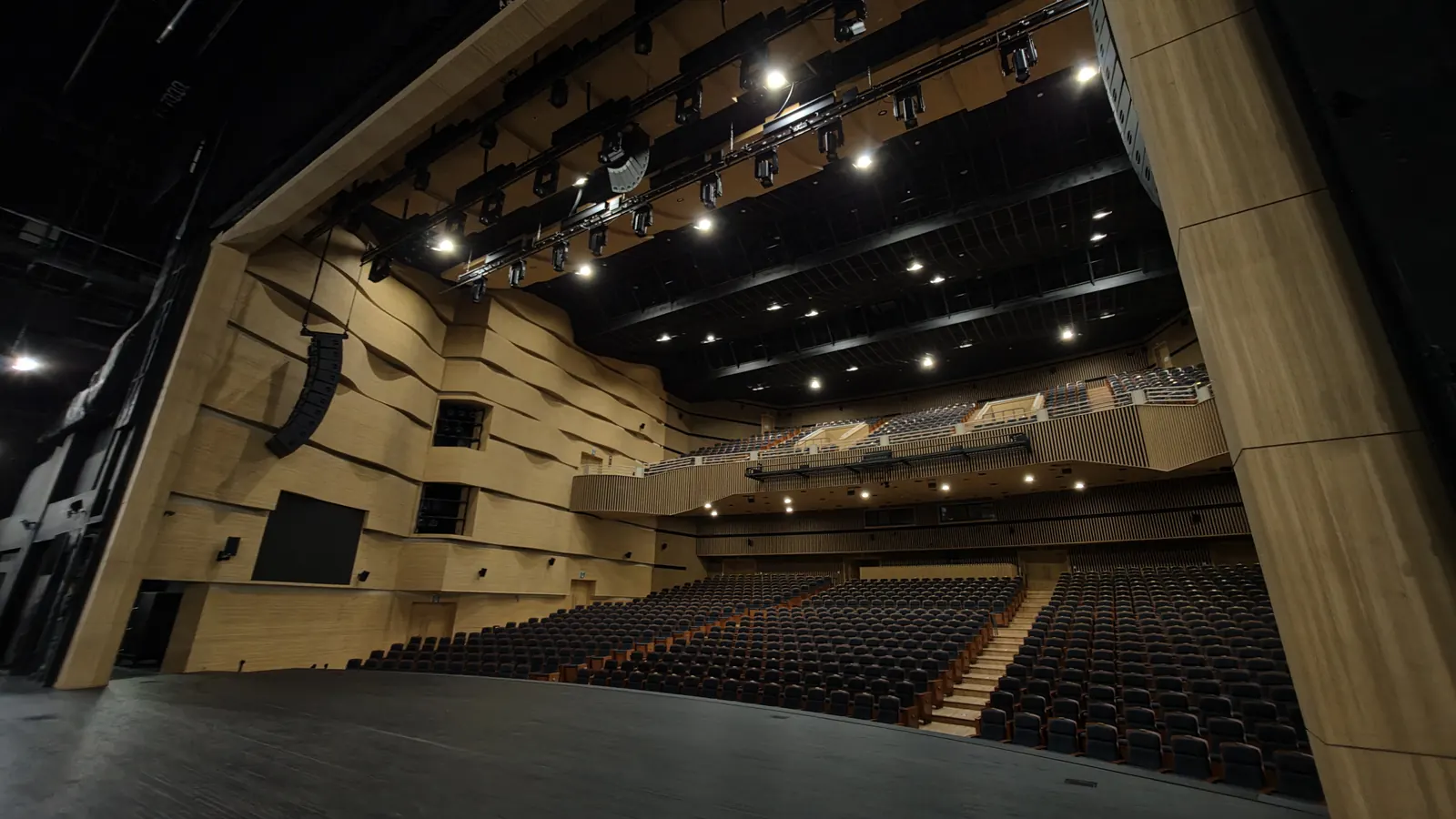
A grand theater stage machinery control system lets an operator move revolving stages, flown battens, lifts, curtains and orchestra pits from one console. We built the third generation of this system with Hanil TNC, a Korean stage machinery company. It handles 13 device types and up to 200 devices, and it now runs in nearly 20 venues across Korea. Our work with Hanil TNC started with small theater control systems, moved on to mid-size and then grand theaters, and has now reached its third version. Below is what the system does, from building a show to running it live.
What a grand theater control system moves
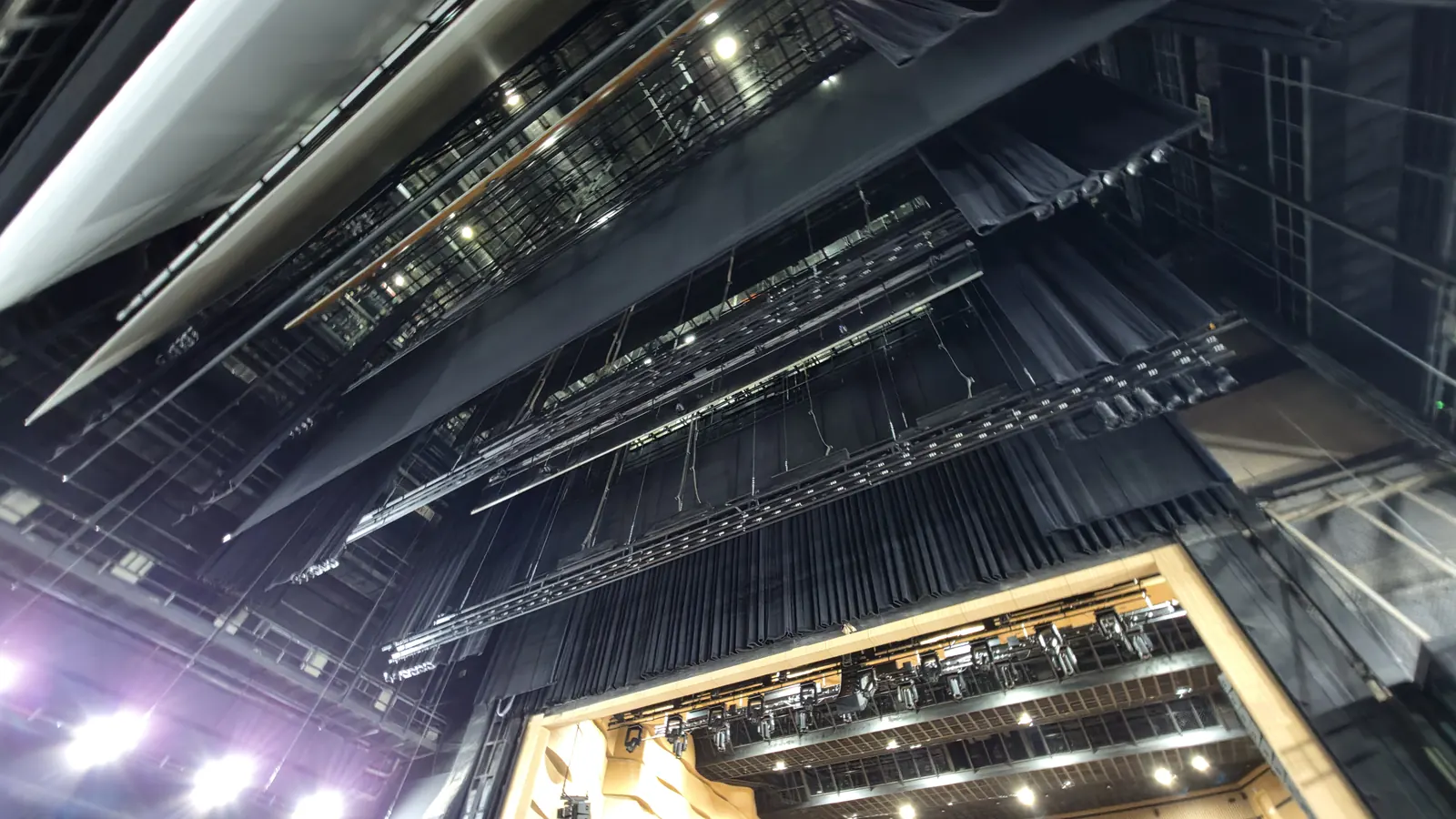
Looking up from the stage. Battens, curtains and lighting battens hang in layers, and every one of them is a controlled device.
A grand theater stage has dozens to hundreds of moving devices above the performers’ heads and under their feet. This system covers 13 device types.
| Device | Motion | Unit |
|---|---|---|
| Upper battens / lower lifts | Up and down | mm |
| Curtains (open-close / slatting) | Open and close | mm |
| Revolving stage (turntable) | Rotation | 0.00 to 360.00° |
| Proscenium left / right / top | Frame movement | mm |
| Orchestra pit | Up and down | mm |
| Deck wagons (left→right / right→left) | Horizontal travel | mm |
| Acoustic reflector | Angle or travel | ° / mm |
| Safety railing | Up and down | mm |
| Item | Details |
|---|---|
| Client | Hanil TNC (theater stage machinery) |
| Venues | Nearly 20 venues across Korea, including Andong Arts Center, Wonju Chiak Arts Center, Uijeongbu Arts Center, Daegu Bongsan Cultural Center, Cheonan and Incheon |
| Scope | 13 device types, up to 200 devices |
| Components | Operator console, server, per-device controllers, joystick console |
| Status | Third generation complete, in field maintenance |
The operator console has six menus: Monitoring, Scene, Performance, Alarm, Device Settings and Stage Settings. All screenshots below use test device data.
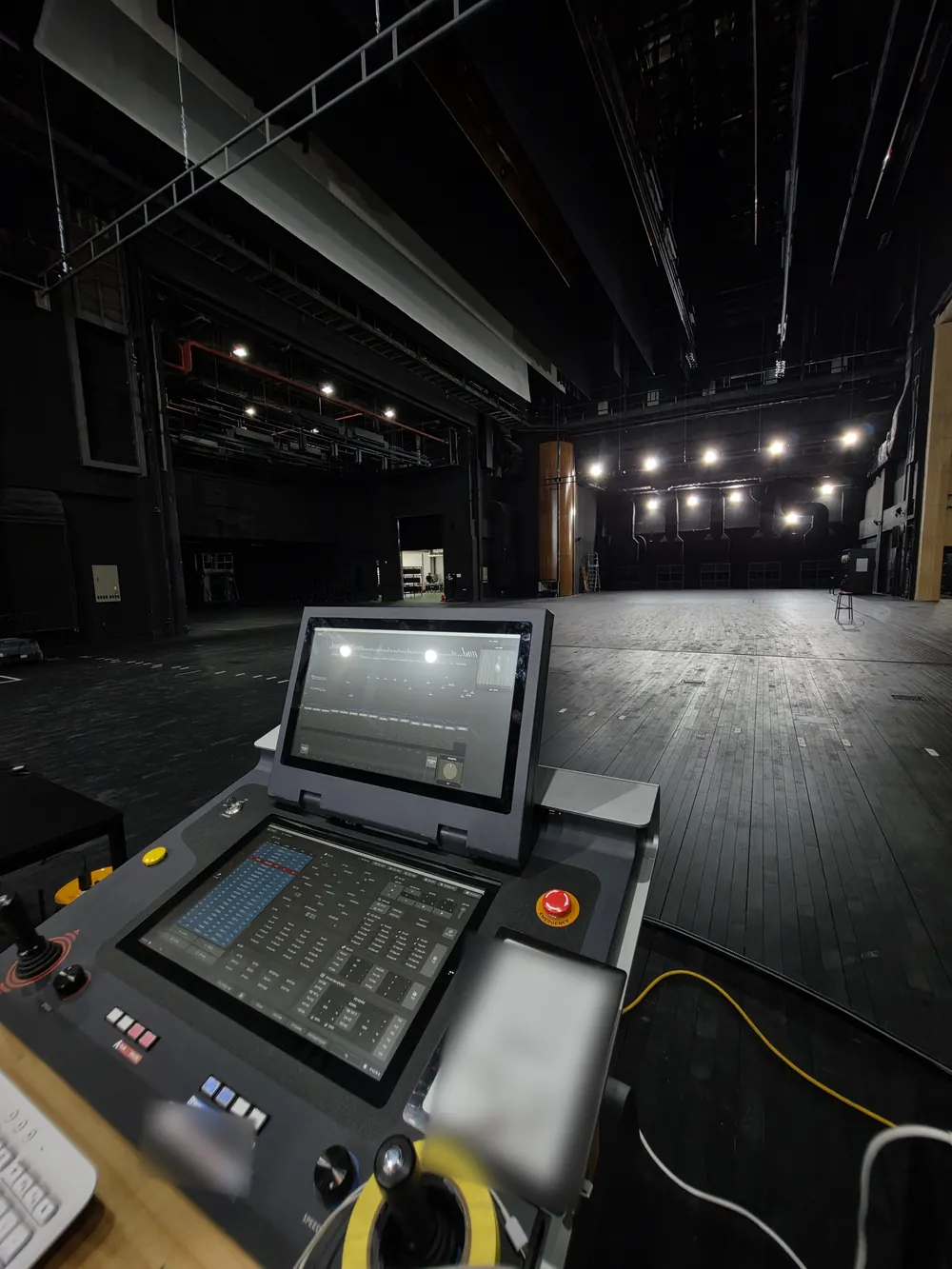
The console on site. Two stacked touch screens, two joysticks and an emergency stop button.
Monitoring: every device drawn the way it looks
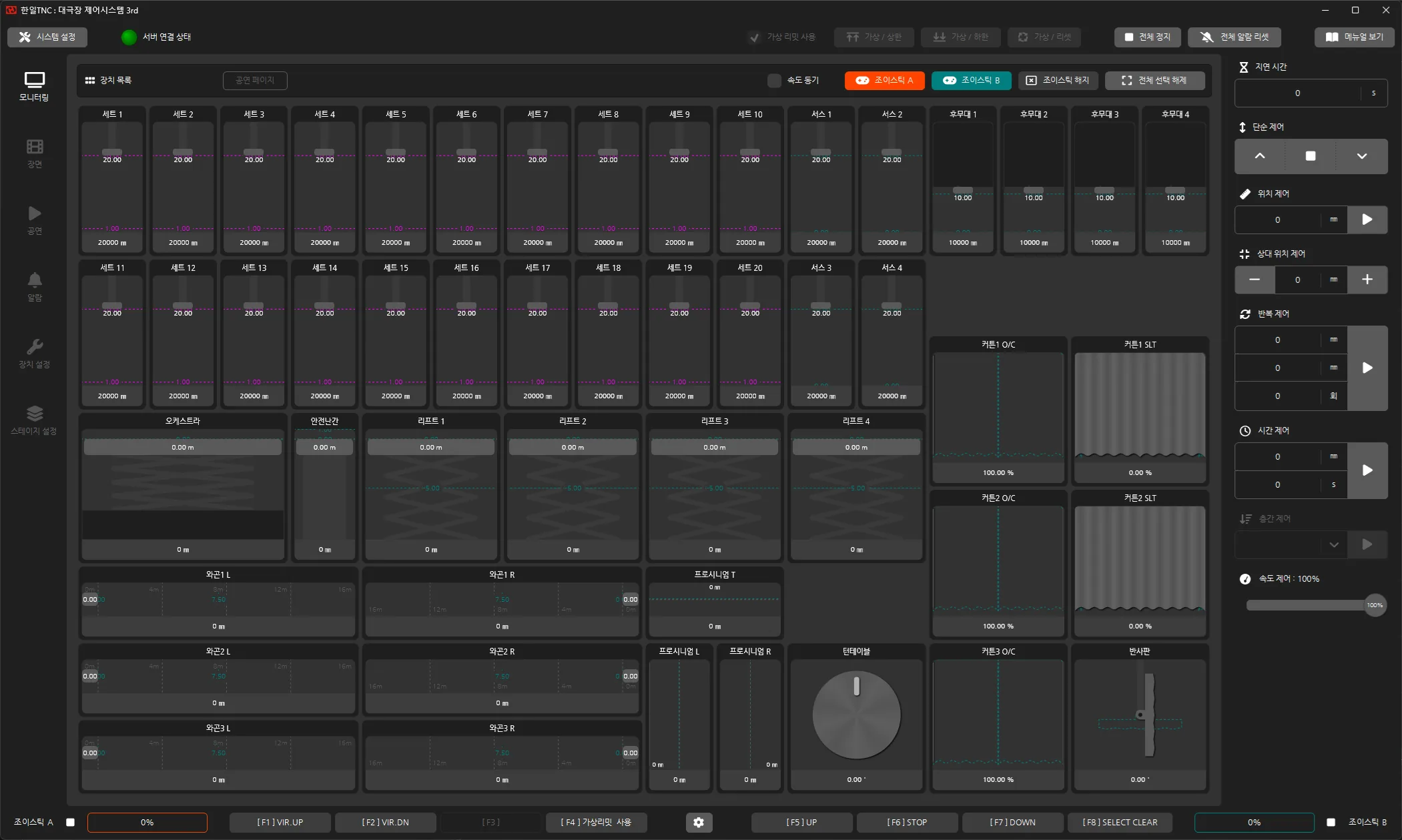
The monitoring screen draws each device by its type. Battens are vertical bars, lifts and the orchestra pit are scissor lifts, wagons are horizontal rails, curtains are drapes and turntables are dials. You can read the state of the whole stage much faster than from a table of numbers.
Tap device cards to select several, then move them together from the right-hand panel.
| Control | Action |
|---|---|
| Simple | Up / stop / down |
| Position | Move to a set position |
| Relative position | Move a set distance from the current position |
| Repeat | Travel back and forth between two positions a set number of times |
| Time | Reach a set position in a set time |
| Floor | Move to a preset floor position |
A delay holds back the start, and speed control scales overall speed by percentage. Joysticks A and B can each be assigned different devices, so two people can move devices by hand at once.
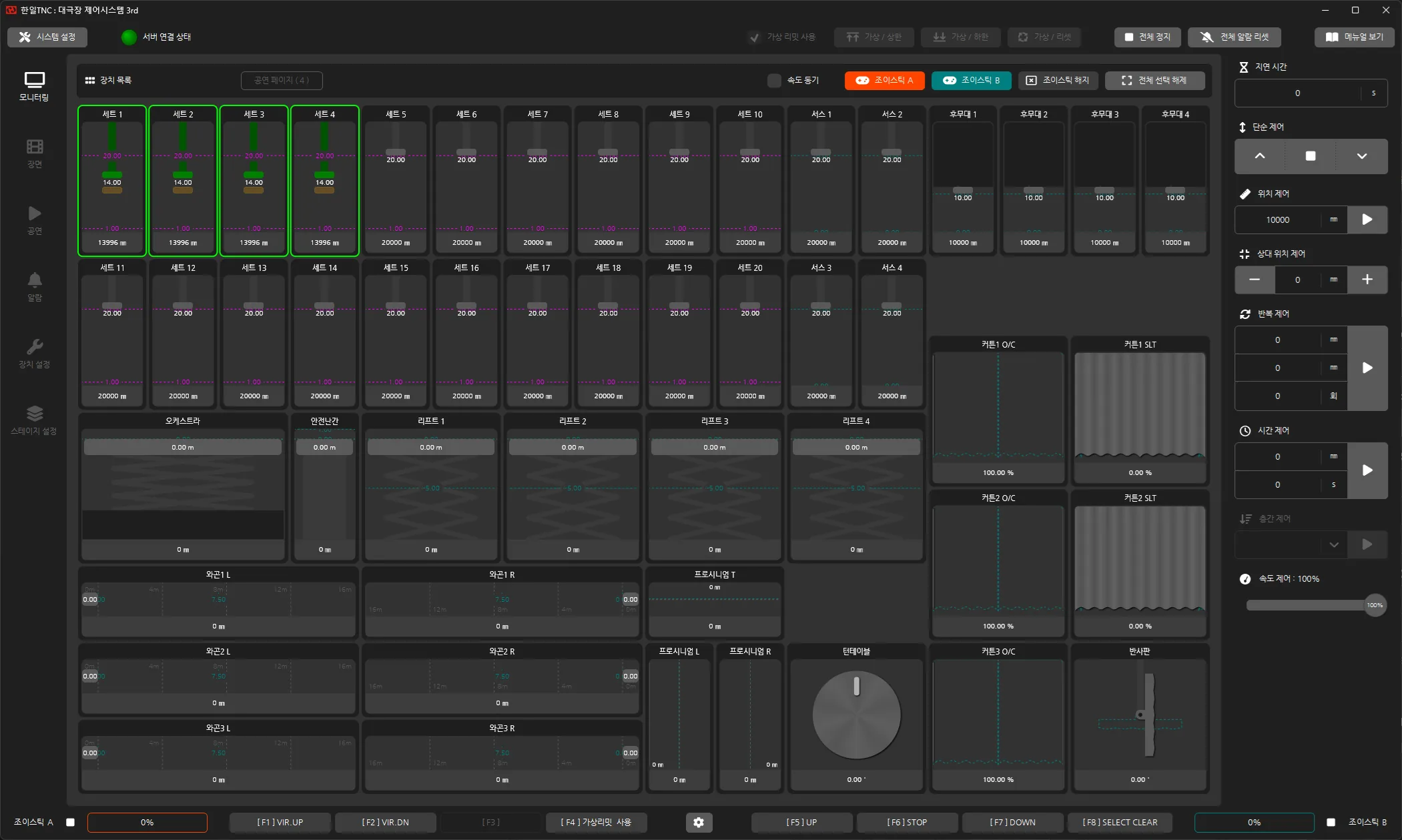
Sets 1 to 4 selected and moving together. Selected devices get a green border, and the moving position shows as a green bar.
Stop All, Reset All Alarms and Use Virtual Limits stay pinned to the top of the screen, so they are one press away from any menu.
Scene: group device moves into one cue
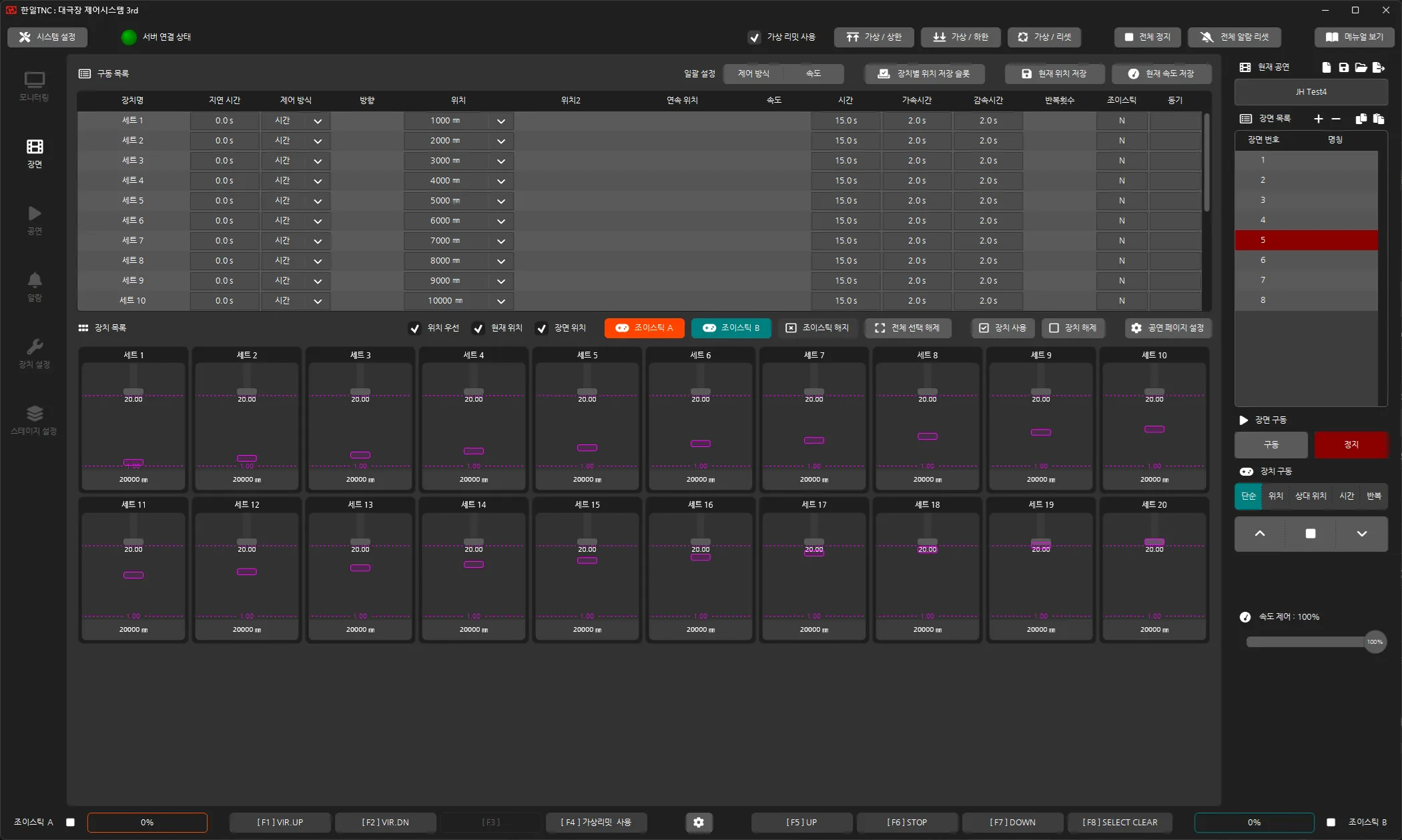
The scene editor. Each device gets one row for delay, control mode, position, time, acceleration, repeat count, joystick and sync.
During a show the operator does not drive devices one by one. They step through scenes (cues) prepared in advance.
- A scene groups the moves of many devices. For each device you set the control mode, target position, speed or time, acceleration and deceleration time, repeat count and delay in a table.
- Devices tied together with sync start together. Staggering the delays makes them start one after another.
- Move devices to where you want them on stage, press Save Current Position, and that position goes straight into the scene. The stage you set by hand becomes the cue.
- Scenes can be added, copied and reordered in the scene list. They are saved per performance.
Performance: advance scenes at the press of a button
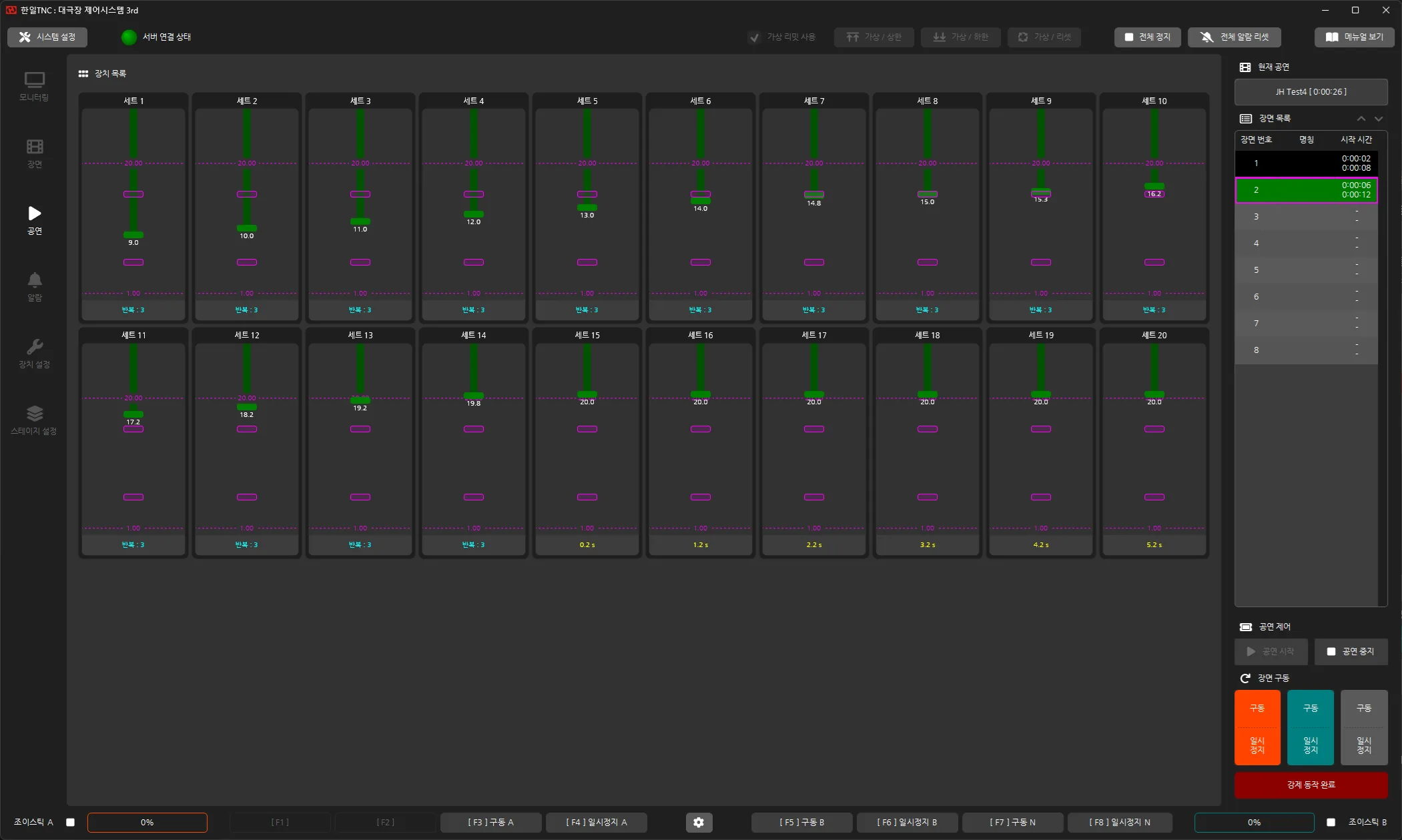
The performance screen. The running scene is highlighted green in the scene list on the right, with a start time logged for each scene. Under each device card you can see the repeats left and the delay remaining before it starts.
Operators use this screen during the live show.
- Three buttons, Run A, Run B and Run N, advance separate cue lines, and each can be paused on its own.
- Elapsed show time and each scene’s start time are recorded.
- Each device card shows its remaining repeat count and the delay left before it starts, so you can see what moves next.
- The system can move on to the next scene automatically when the current one finishes.
Safety: when a device must stop, it stops on its own
We spent more design effort on this part than on anything else.
Every device’s own controller decides whether to stop.
Even if the link to the console or server drops, the controller on each device enforces its limits and emergency stop by itself. A batten coming down overhead does not wait on the network to know when to stop.
Staged stops and per-show virtual limits
As a device nears the end of its travel, it slows and stops in stages.
| Stage | Role |
|---|---|
| Floor slow/stop positions (4 floors) | Slow and stop at intermediate positions set per device |
| Position limit | Stop if the measured position leaves the set range |
| Slow zone | Reduce speed near the end of travel |
| Stop position | Decelerate to a stop |
| Final limit | Mechanical limit switch, the last line of defense |
On top of that, each show can set its own virtual limits. The same batten may need to stop short of its mechanical range for one production because of the set. Virtual upper and lower limits are set from buttons at the top of the screen.
11 monitored alarms
The controller watches 11 alarm types: R-phase and S-phase faults, input voltage, encoder fault, inverter fault, emergency stop, local mode, EOCR (overload), primary and secondary breakers, and encoder not set. The encoder not set alarm keeps a device from moving at all until its position has been set up. Every alarm is logged when it occurs and when it clears, and the log can be searched by date or date range.
Device Settings: limits and speeds for each device
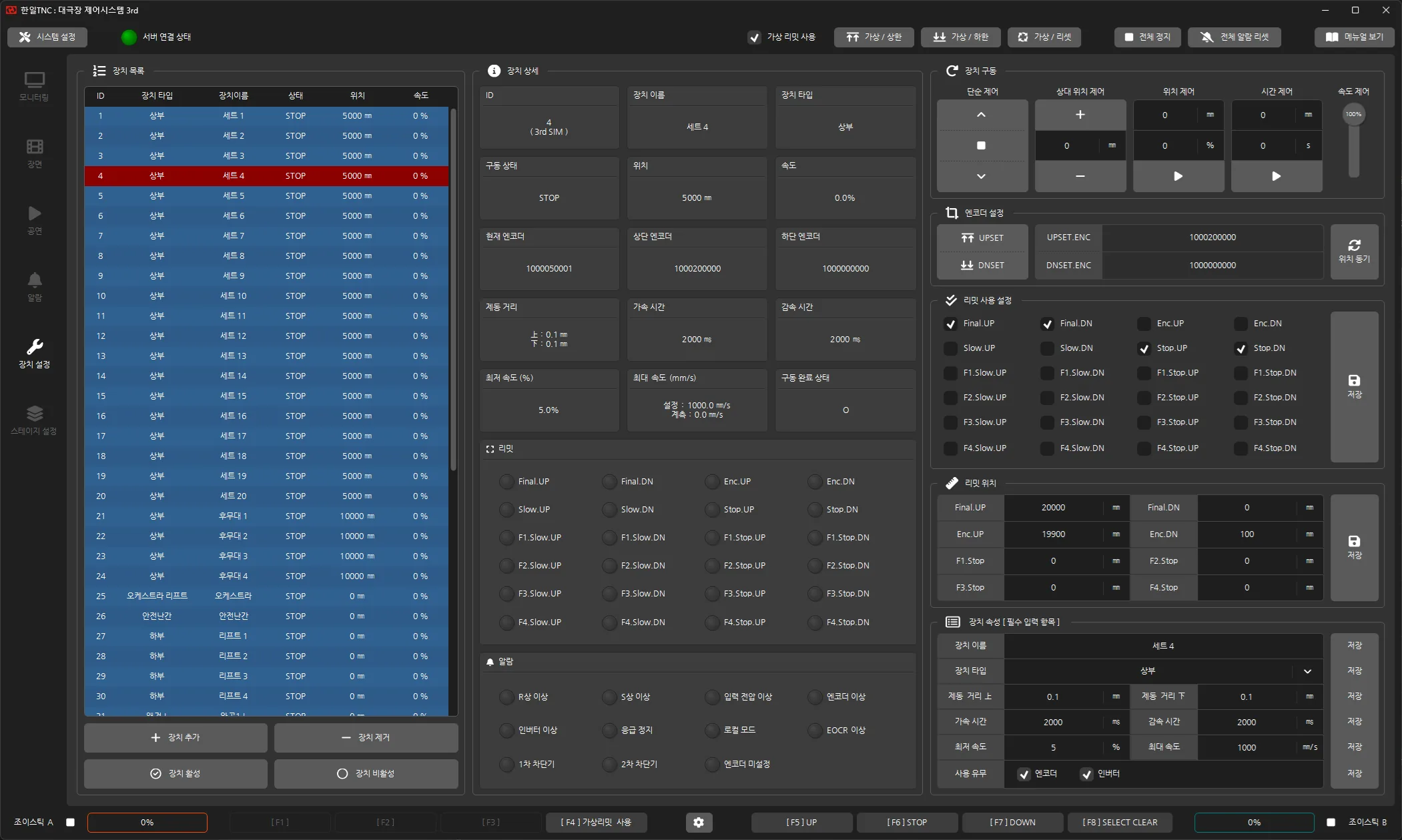
The device settings screen. Pick a device from the list on the left to see its status, limits and alarms in the middle and its settings on the right.
Device Settings is where devices are added, removed, or disabled when unused. For each device you set:
- Name and type
- Acceleration and deceleration time, minimum speed, maximum speed and braking distance
- Which limits are in use and where each limit sits
- Upper and lower reference positions
Stage Settings: carry each venue’s stage into the software
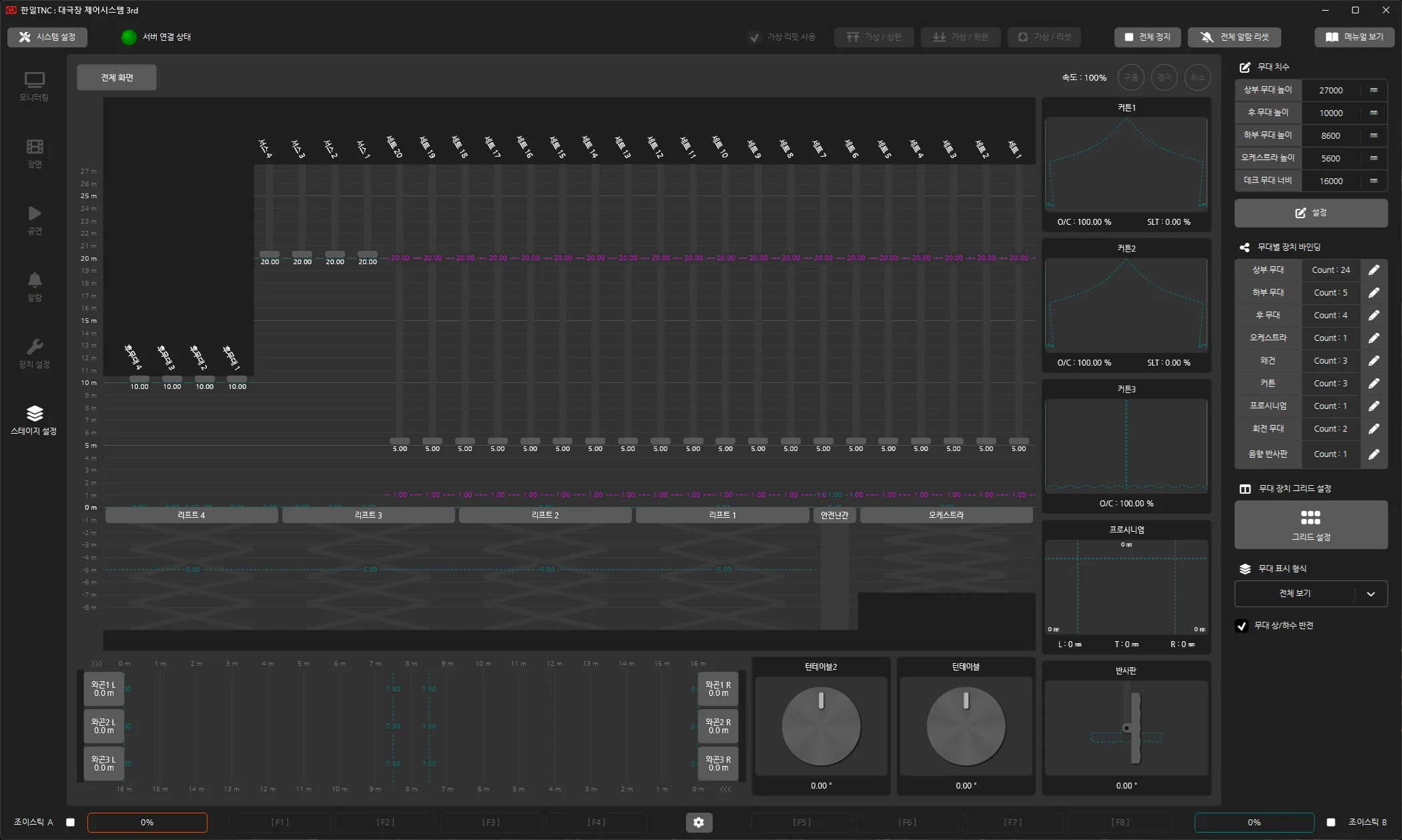
The stage settings screen. Enter the stage dimensions and how many devices belong to each area, and the full stage cross-section is drawn.
No two of these venues have the same stage size or device layout, so each venue gets its own configuration in Stage Settings.
- Stage dimensions: upper stage height, rear stage height, lower stage height, orchestra height and deck width
- Device binding per area: how many devices belong to the upper stage, lower stage, rear stage, orchestra, wagons, curtains, proscenium, revolving stage and acoustic reflector
- Display layout and stage left/right flip: turn the view to match where the operator stands
From these values the full stage cross-section is drawn, and the devices move at their real heights.

The full stage view in Stage Settings. Twenty battens come down together, then move one after another on staggered delays. About three minutes of recording played back at 6x speed.
Simulator: check the cues before they reach the stage
Two simulators come with the system, so you can check cues without moving real stage machinery.
- General device simulator: run up to 100 devices and play a show’s cues all the way through.
- Revolving stage simulator: check revolving stage motion on its own.
That means scenes can be built and stepped through with the Run buttons back at the office, before anyone goes on site.
Summary
This grand theater stage machinery control system moves up to 200 stage devices from one console. Operators build scenes ahead of time and step through them with the Run buttons during the show, while every console shows the same stage state. Stage Settings adapts the system to each venue, and when a device has to stop, its own controller makes that call.
The system is installed with Hanil TNC in nearly 20 venues across Korea, and we keep refining it alongside the people who run it.
Looking back, the decision that mattered most in this system was where the call to stop gets made, more than anything about what moves.
Contact
- Email: [email protected]
- Instagram: https://www.instagram.com/going.sen/
- Website: https://intosen.com/kr/consult/
Comments
Enter a nickname to leave a comment, or sign in with Google or GitHub.