PRODUCTS / SENVAS / V1 · SV SERIES
Senvas V1 · Industrial HMI

Industrial HMI
built through conversation

AI and engineers design the screens together, then deploy to the field.
Hardware and software unified — Korea's first AI-native industrial touch HMI.

SV070 · 7" SV100 · 10.1" BCM2711 · Quad-core AI Designer Built-in
◉ LIVE · HMI Running
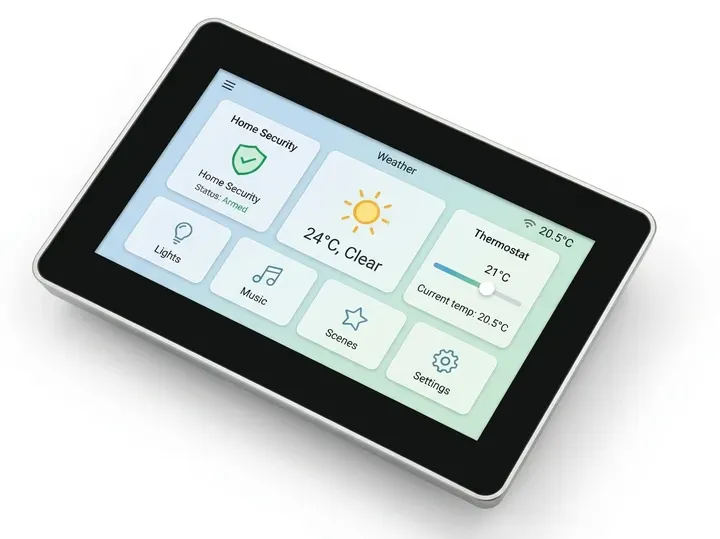
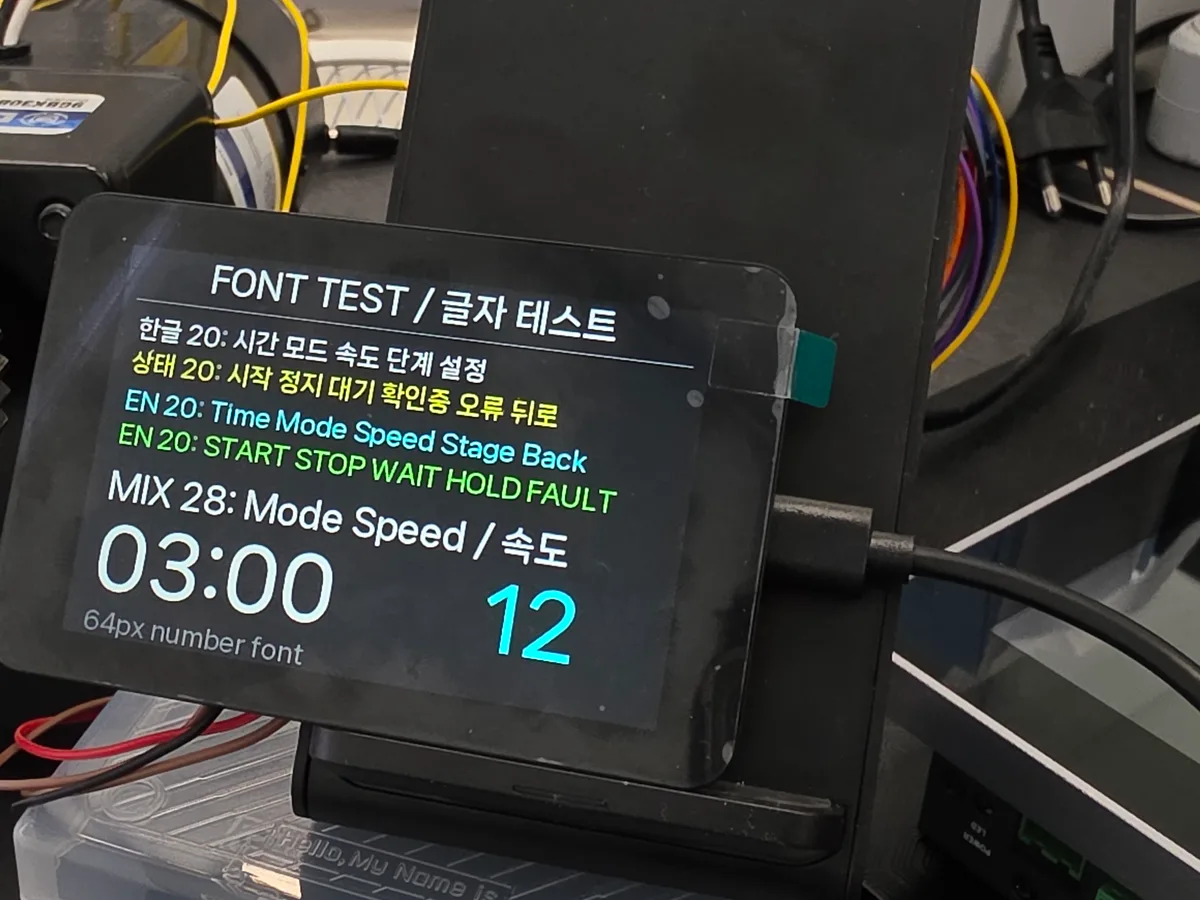
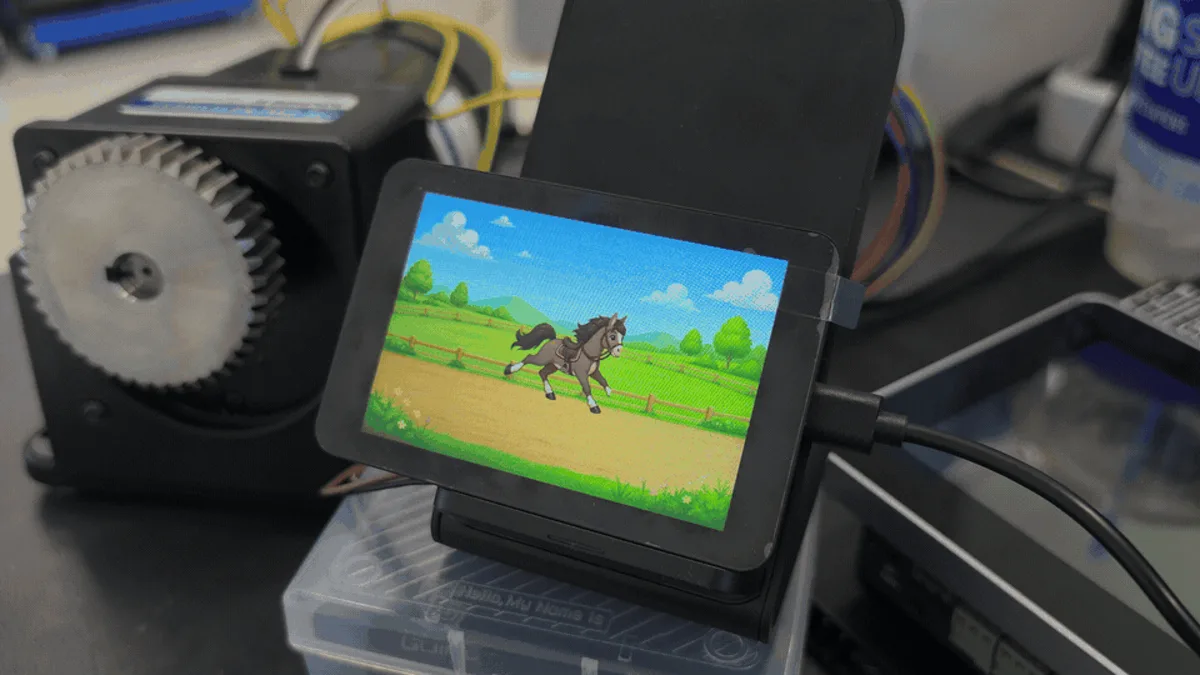
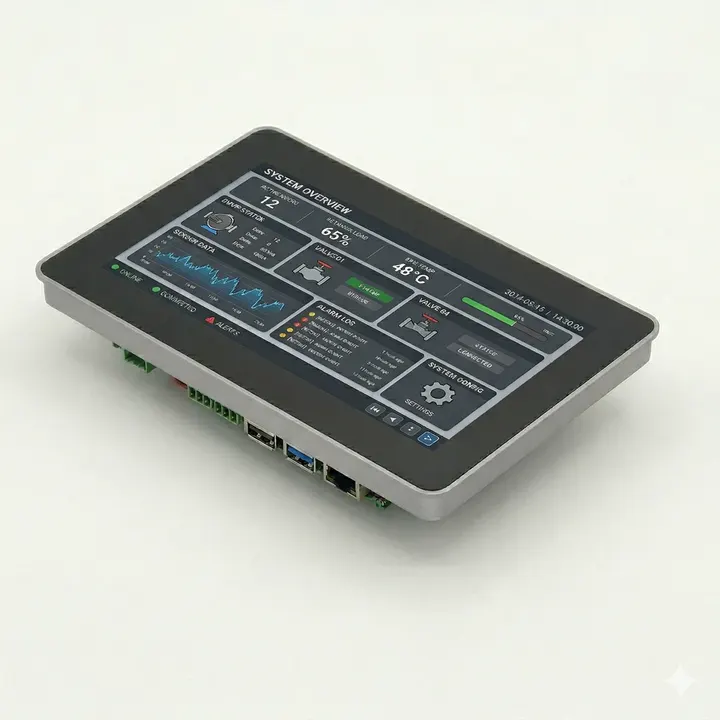
Senvas SV070 HMI running

A fundamentally different
approach to HMI

Conventional HMI · three trade-offs

Closed Ecosystem

Vendor lock-in
no extensibility

Generic Editors

Code & UI
both manual

SI Outsourcing

Costly
black box

↓ SENVAS
An integrated platform with single accountability
SENVAS V1
HARDWARE
+
AI
+
SOFTWARE
Senvas solves this.
1H
Interview → Deploy

From weekly delivery
to hourly delivery

0
Black Box

Standardized
AI output

1
Single Vendor

Unified HW + SW
responsibility

2M
Field Edit

No field trips
for revisions

From interview to deployment,
in one hour

Senvas completes the whole flow in 6 steps.
Each step is independent and every artifact is saved as a file.

▶ INTERACTIVE DEMO
🔧 Designing...
Phase 1 — Project Brief
✅ Approved
Project Overview
Page Structure
Communication Setup
Phase 2 — UI Design
✅ Approved
Screen Layout
Component Definition
Style & Theme
Phase 3 — Program Design
✅ Approved
Data Model
Service Layer
Event Flow
⏱ 00:00
🔧 Implementing...
Step 1 — Design Analysis
Extract Checklist
Write implement_checklist.md
Step 2 — Generate .gud
Run GudCreator
Step 3 — MakeCode
Call make_code MCP
Step 4 — Write C# Code
Main · Managers
Pages · Windows
Step 5 — Build Check
dotnet build
Step 6 — Self Review
Re-verify Checklist
0 / 6
⏱ 00:00
AI is laying out the UI...
Test91
Monitoring Trends Settings
Code Explorer
Device List
1 device found
going-01
172.30.1.13
Deploying... 0%
✓ Deployed — running on going-01
I
Interview
Interview
Collect requirements via conversation
II
Plan
Plan
Plan & approve
III
Implement
Implement
Auto-generated source
IV
UI Edit
UI Edit
Tune on canvas
V
Code
Code
Review & refine
VI
Deploy
Deploy
Send to device

Just say what to build — Senvas handles how.

★ Recommended

AI Mode

6 steps · ≈ 1 hour · conversation-driven
  • State requirements in natural language — AI runs the whole pipeline
  • Activate the AI panel at any step
  • Outputs saved as human-readable standard files
◯ Alternative

Manual Mode

3 steps · UI Edit → Code → Deploy
  • Works instantly without an AI setup
  • Same workflow engineers already know
  • Switch to AI Mode anytime
Try it yourself →

Try the AI HMI Designer right in your browser

Real screens, built with Senvas

Industrial HMIs built through conversation.

Senvas HMI screen 01
Senvas HMI screen 02
Senvas HMI screen 03

Product Appearance

Front in-action, angled views, and rear I/O port detail. Five views that mirror real installation conditions.

Two sizes,
one platform

Same compute module, same I/O, same Senvas Runtime. Pick the display size that fits your process and footprint.

◉ Compact

SV070

7.0" TFT · 1024 × 600 · 400 cd/m²
Active Area
154.21 × 85.92 mm
Contrast
800 : 1
Viewing Angle
85°/85°/85°/85°
Response
30 ms
W 188 × D 123 × H 42 mm · 900 g
₩396,000
Buy now →
◉ Wide

SV100

10.1" TFT · 1280 × 800 · 250 cd/m²
Active Area
216.58 × 135.36 mm
Contrast
1000 : 1
Viewing Angle
80°/80°/80°/80°
Response
30 ms
W 258 × D 172 × H 42 mm · 1000 g
₩484,000
Buy now →
30K+
MTBF (h)
6H
Surface Hardness
≥85%
Touch Transmit
16.7M
Colors
12–28V
DC Input

All field signals,
in one panel

Wide-range I/O that connects directly to existing PLCs, serial, and Ethernet gear. No separate gateway — one HMI does it.

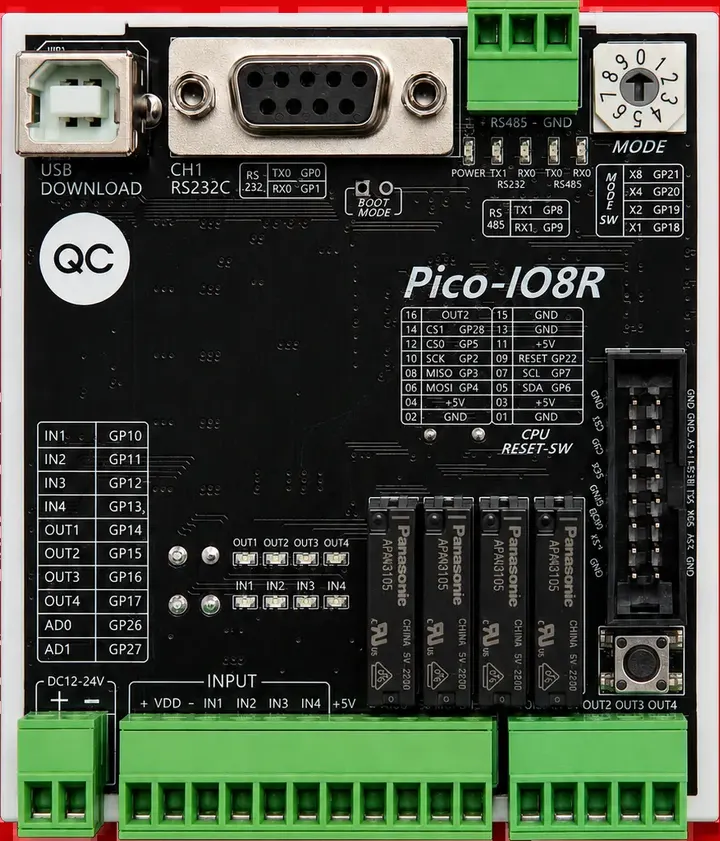
Senvas rear ports
RS-232Serial control · legacy gear×1 ch
RS-485Modbus RTU · multi-drop×3 ch
Ethernet10/100/1000 Mbps RJ45 · Modbus TCP · MQTT×1
USB 2.0Peripherals · HID×2
USB 3.0High-speed storage · camera×2
Micro SDOS · project storage×1 slot
BuzzerBuzzer / alarm outputBuilt-in

Two installation options

VESA-mount on top of equipment or flush-mount in a control panel — pick what fits the site.

VESA Mount

Top of equipment or on a stand

Panel Mount

Flush-mount in the control panel front

The screens people build most

USE · 01

Monitoring

Real-time monitoring with trend graphs across 8-32 channels — temperature, pressure, flow.

USE · 02

Alarms & Settings

Threshold setup, alarm history, per-channel status indicators.

USE · 03

Recipe Management

Quickly build screens for entering, saving, and loading process recipes.

USE · 04

Operation Control

Start/stop, manual override, emergency-stop interlock UI.

A one-time purchase covers it

One-time hardware purchase plus optional Claude subscription. No maintenance contract, no add-on licenses.

Senvas 7"

SV070 · 1024 × 600
₩396,000
  • SEN-dedicated Claude skill: Free
  • HMI tools: Included
  • AI usage: Claude subscription separate ($20/mo)
Buy now →

Senvas 10.1"

SV100 · 1280 × 800
₩484,000
  • SEN-dedicated Claude skill: Free
  • HMI tools: Included
  • AI usage: Claude subscription separate ($20/mo)
Buy now →
No hidden fees No add-on licenses No maintenance contract 14-day full refund

Full Specifications

Shared and per-model specs for SV070 / SV100. Based on Senvas Runtime v1.

▸ LCD

Item
SV070 · 7"
SV100 · 10.1"
Size
7.0" TFT
10.1" TFT
Resolution
1024 × 600
1280 × 800
Colors
16.7M
16.7M
Active Area
154.21 × 85.92 mm
216.58 × 135.36 mm
Luminance
400 cd/m²
250 cd/m²
Contrast
800 : 1
1000 : 1
Response
30 ms
30 ms
Viewing Angle
85° × 4
80° × 4
Backlight
LED
LED
MTBF
> 30,000 h
> 30,000 h

▸ Mechanical

Item
SV070
SV100
Dimensions
188 × 123 × 42 mm
258 × 172 × 42 mm
Weight
Approx. 900 g
Approx. 1000 g

▸ Touch Screen (Shared)

Type
Multi-point Capacitive Touch Screen
Transmittance
≥ 85%
Controller I/F
I²C
Driver
Linux
Hardness
6H

▸ System (Shared)

CPU
Broadcom BCM2711 · Quad-core Cortex-A72 @ 1.5 GHz
GPU
OpenGL ES 3.0
Memory
2 GB LPDDR4
Storage
Micro SD Card (32 GB / 64 GB optional)

▸ Software

OS
Raspberry Pi OS
Runtime
SENVAS Runtime
Dev Tool
SENVAS Designer (AI-based UI design)

▸ Communication · I/O · Power

RS-232
1 channel
RS-485
3 channel
Ethernet
1 × 10/100/1000 Mbps RJ45
USB 2.0
2 Ports
USB 3.0
2 Ports
SD Card
1 × Micro SD
Buzzer
Electronic Buzzer
Input Voltage
DC 12 V ~ 28 V

Senvas Designer
App Download

Windows installer for Senvas Designer.
Always the latest version.

Senvas Designer
Checking latest version...
Windows Download →
Full version history → Windows 10 / 11 · 64-bit

Frequently Asked Questions

Yes. Everything AI generates opens as a standard project file. Position, size, and colors are freely editable in the HMI tool and on-site. Nothing is a black box — handoff and version control work normally.

Senvas runs on your own Claude subscription. You're not locked to a vendor — your plan determines limits, and your data and history stay in your account after the project ends. The SEN-dedicated Claude skill is free.

Yes. Senvas HMI supports both AI Mode and Manual Mode. Manual Mode works instantly without any AI setup and is the fastest path for experienced engineers.

Modbus RTU/TCP, MQTT, LS CNet, and Mitsubishi MC Protocol. Standard industrial protocols mean direct connection to most PLCs — no extra gateway needed.

No field trip required. One-line change, redeploy from the same PC with the same tool — about two minutes. Engineers can respond to small field requests without leaving the office.

Full refund within 14 days of receiving the hardware. Defective units can be exchanged or refunded even after opening.

From Naver Smartstore (KR). Open Smartstore (KR) — Naver Pay accepted, with card benefits. Ships within 3-5 business days of payment confirmation.

◉ Get Started

It gets clearer
when you see it

Start with a conversation, end with a touch in the field.
Start your next project with AI.

sales@intosen.com · intosen.com