
We put Korean fonts on an Arduino TFT LCD, specifically the ST7796 panel of the RP2350 Touch LCD 3.5. Korean, English, and numbers are rendered at 20px, 28px, and 64px, and every size was checked on the real screen for legibility and alignment.
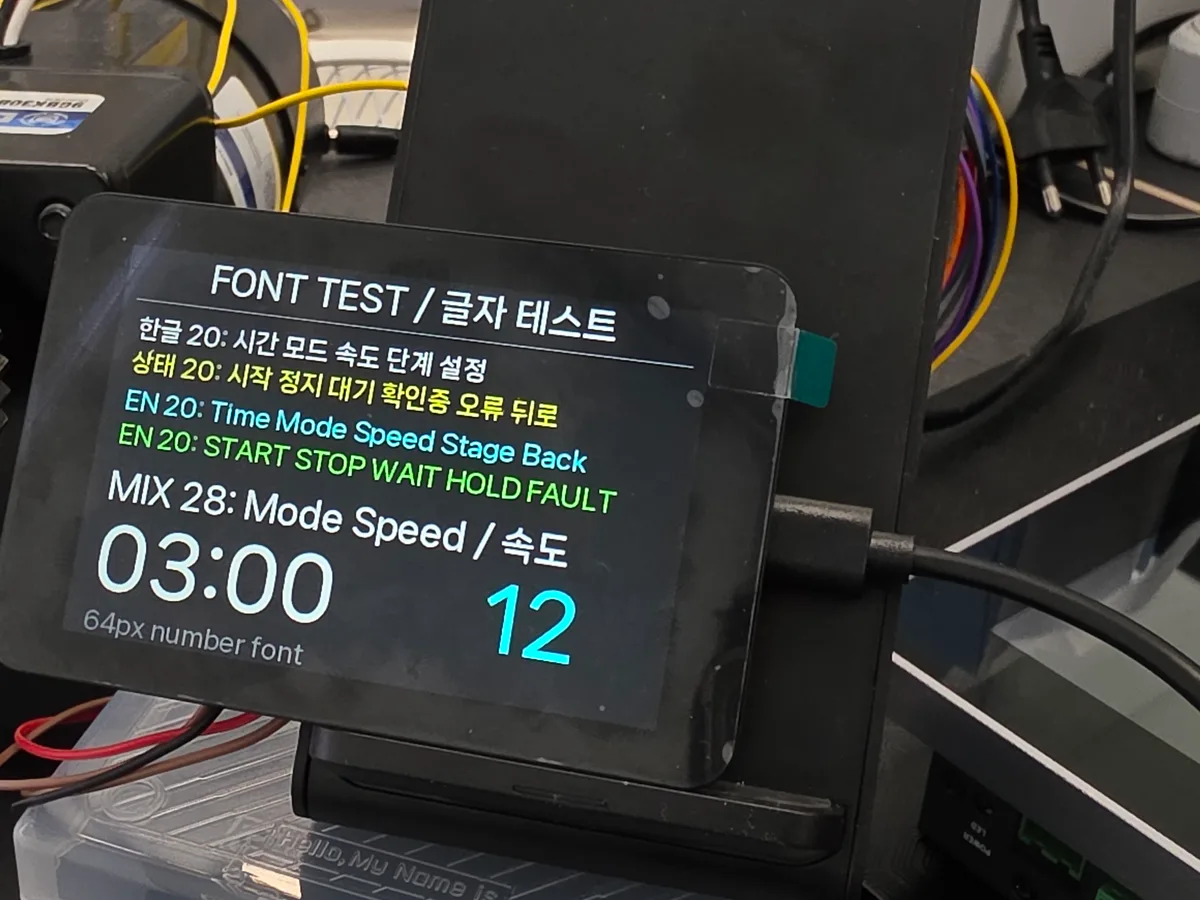
Korean, English, and numeric text on the RP2350 Touch LCD 3.5
Font sizes on the RP2350 Touch LCD 3.5
Each font size on the RP2350 Touch LCD 3.5 has a specific job.
| Size | Where it is used | What we checked on screen |
|---|---|---|
| 20px | Status lines, small hints | Mixed Korean and English sentences on one screen |
| 28px | Screen titles, main buttons | Titles and primary controls stay crisp |
| 64px | Time, stage, and other large values | Values like 03:00 or 12 readable from a distance |
Instead of one size for everything, small hints use 20px, titles and main buttons use 28px, and numbers use 64px. The large font only carries the digits and the : it actually needs.
Comparing Korean and English fonts on the TFT LCD
Choosing a font on a PC monitor is not enough for Korean text on a TFT LCD. We rendered NanumSquareNeo, NanumSquareRound, NanumGothic, and D2Coding with the same strings at the same size and compared the Korean, English, and numeric shapes on the panel itself.
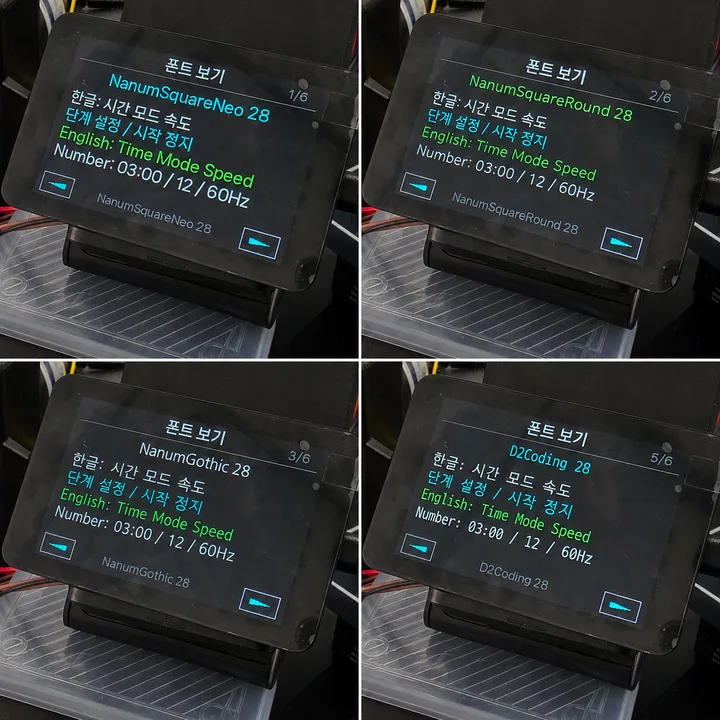
Four fonts compared under identical conditions on the RP2350 Touch LCD 3.5
NanumSquareNeo went into the final UI. Even with Korean, English, and digits on the same line, the height and spacing can be verified on the actual device.
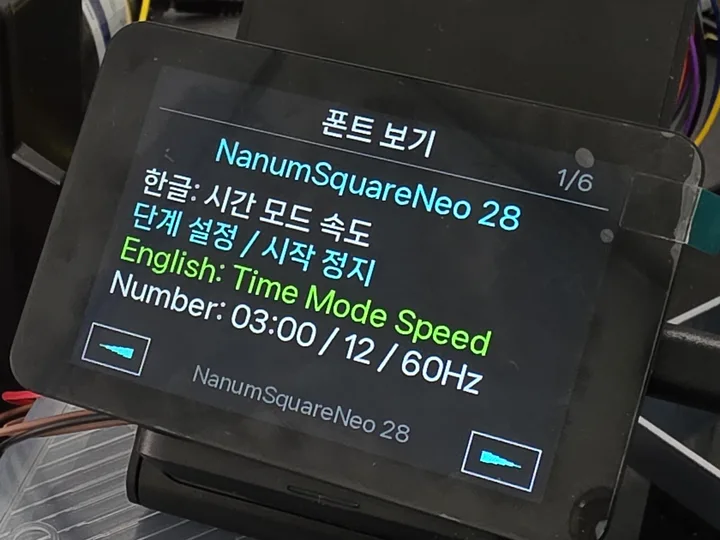
NanumSquareNeo at 28px with Korean, English, and digits together
Why a TTF file cannot go straight onto the LCD
TTF to bitmap conversion is required because the RP2350 does not rasterize TTF outlines into pixels at runtime. Dropping a TTF file into the Arduino project draws nothing on the ST7796.
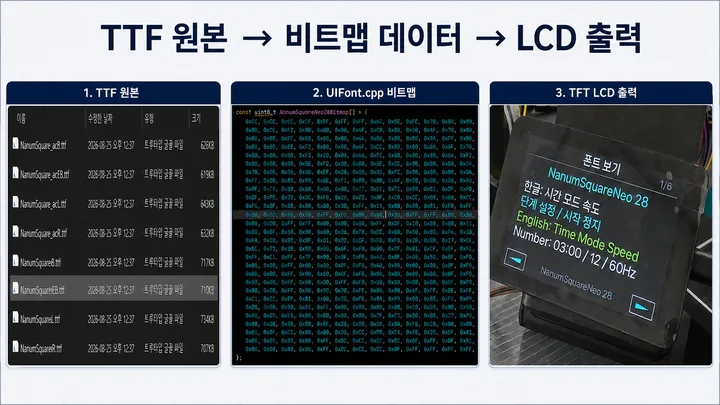
The actual TTF file, the bitmap data in UIFont.cpp, and the LCD output, connected
The workflow has three steps.
- Pick the source TTF on the PC.
- Convert only the characters the screen needs into pixel data and store it in
UIFont.cpp. - The RP2350 reads that data and draws it on the ST7796 LCD.
Below is the source TTF before conversion and the generated code after it.
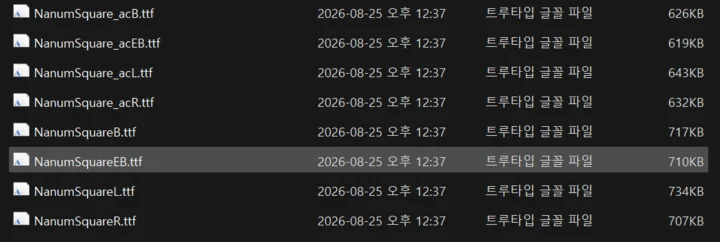
NanumSquare family TTF files used as the conversion source
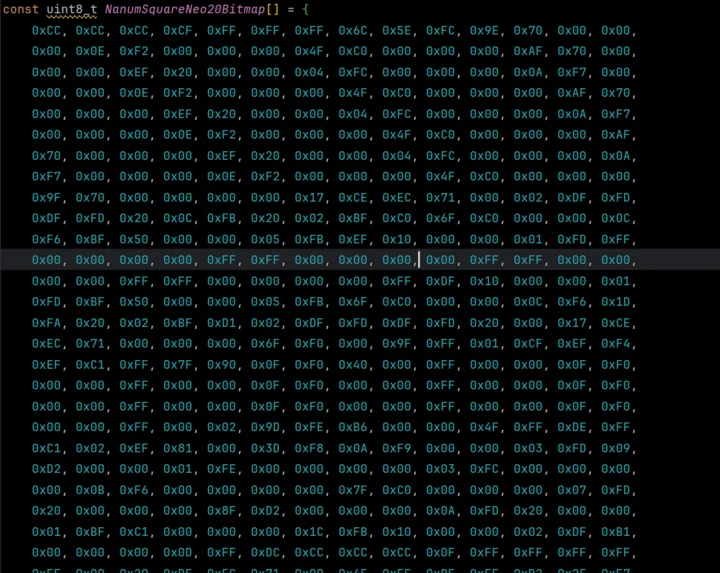
LCD pixel data generated as the NanumSquareNeo20Bitmap array
A bitmap font here is nothing more than each character’s shape turned into the pixel values the LCD will show. Rather than interpreting TTF, the RP2350 reads the pre-converted array and draws it directly.
Convert only the glyphs and sizes you need
An embedded Korean font is far easier to manage when it contains only the characters and sizes the screen actually uses, rather than the entire character set.
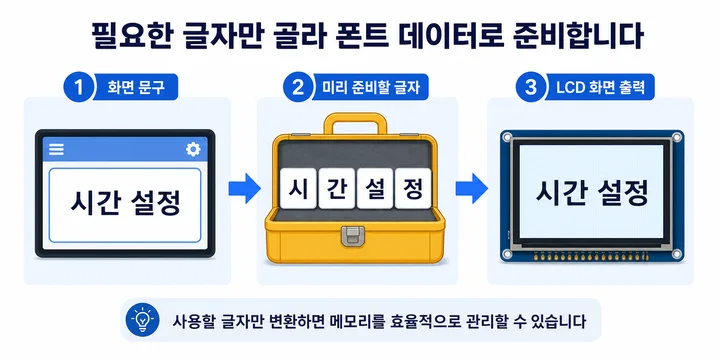
Decide the screen strings first, then generate a bitmap font from only those characters
In this project, the 20px and 28px fonts carry the Korean and English UI text, and the 64px font carries only what the large numeric display needs. When a screen string changes, add the new characters to the list and regenerate the font.
UI_GLYPHS = "...시간모드속도단계설정시작정지..."python tools/generate_ui_font.pyInclude the generated UIFont.h and UIFont.cpp in the project. The TTF is used only during conversion; the LCD draws from the converted bitmap data.
Why Korean shows up as a question mark
If a Korean character renders as ?, first check whether that glyph exists in the bitmap font. In the screen below, 속? appeared because the code said 속도 but the converted font data was missing 도.
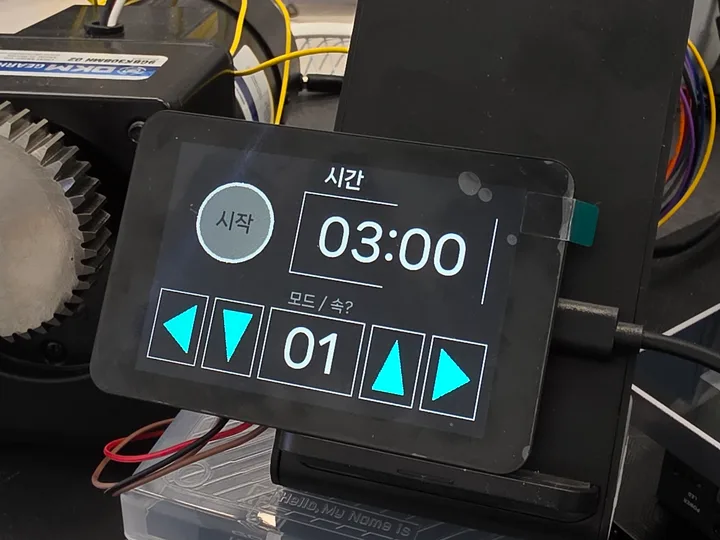
도 was missing from the bitmap font, so the LCD drew ?
The fix is straightforward.
- Finalize the strings you will use.
- Add the missing characters to the font generation list.
- Regenerate
UIFont.handUIFont.cpp. - Rebuild and check the real LCD.
One prepared character in the font data is called a glyph. Think of it simply as the picture data for a single character stored on the LCD side.
Example: drawing with the generated font
To use the generated UIFont on another screen or in another Arduino project, include UIFont.h, UIFont.cpp, ST7796Display.h, and ST7796Display.cpp together. Draw with drawFontText() or drawFontTextCentered(), and call present() once after the whole screen is drawn.
#include "ST7796Display.h"
#include "UIFont.h"

static constexpr uint16_t BUTTON_GREEN = 0x07E0;
static constexpr uint16_t BUTTON_RED = 0xF800;
static constexpr uint16_t BUTTON_BLUE = 0x025F;

void drawExampleButton(int16_t x, int16_t y, int16_t w, int16_t h,
                       const char *label, uint16_t fill, uint16_t textColor) {
  ST7796Display::fillRect(x, y, w, h, fill);
  ST7796Display::drawRect(x, y, w, h, ST7796Display::WHITE);

  const int16_t textY = static_cast<int16_t>(
      y + (h - UIFont::NanumSquareNeo20.lineHeight) / 2);
  ST7796Display::drawFontTextCentered(x, textY, w, label,
                                      UIFont::NanumSquareNeo20,
                                      textColor, fill);
}

void drawFontExampleScreen() {
  if (!ST7796Display::begin()) {
    return;
  }

  ST7796Display::fillScreen(ST7796Display::BLACK);

  // Title: 28px font
  ST7796Display::drawFontTextCentered(0, 10, ST7796Display::width(),
                                      "시간 설정", UIFont::NanumSquareNeo28,
                                      ST7796Display::WHITE,
                                      ST7796Display::BLACK);

  // Compact labels and mixed Korean/English text: 20px font
  ST7796Display::drawFontTextCentered(0, 48, ST7796Display::width(),
                                      "EN 20: Time Mode Speed Stage Back",
                                      UIFont::NanumSquareNeo20,
                                      ST7796Display::CYAN,
                                      ST7796Display::BLACK);
  ST7796Display::fillRect(24, 82, 432, 1, ST7796Display::GRAY);

  drawExampleButton(36, 110, 120, 58, "시작", BUTTON_GREEN,
                    ST7796Display::BLACK);
  drawExampleButton(180, 110, 120, 58, "정지", BUTTON_RED,
                    ST7796Display::WHITE);
  drawExampleButton(324, 110, 120, 58, "뒤로", BUTTON_BLUE,
                    ST7796Display::WHITE);

  ST7796Display::drawFontText(36, 198, "한글 20: 시간 모드 속도 단계 설정",
                              UIFont::NanumSquareNeo20,
                              ST7796Display::WHITE,
                              ST7796Display::BLACK);
  ST7796Display::drawFontText(36, 228, "MIX 28: Mode Speed / 속도",
                              UIFont::NanumSquareNeo28,
                              ST7796Display::YELLOW,
                              ST7796Display::BLACK);
  ST7796Display::drawFontText(36, 268, "03:00", UIFont::NanumSquareNeo64,
                              ST7796Display::WHITE,
                              ST7796Display::BLACK);

  // Present once after drawing the screen so intermediate steps never show.
  ST7796Display::present();
}

void setup() {
  Serial.begin(115200);
  drawFontExampleScreen();
}

void loop() {
}
Before placing a long string in a button or a narrow box, measure it with fontTextWidth(). If it is wider than the box, shorten the text, drop from 28px to 20px, widen the box, or split it into two lines.
const int16_t w = ST7796Display::fontTextWidth("시간 설정", UIFont::NanumSquareNeo28);Recap: fonts on a TFT LCD
Korean text on a TFT LCD does not end with copying a TTF file into the project. Decide which Korean, English, and numeric characters you need and at what sizes, then convert them into bitmap data the LCD can read.
For this RP2350 Touch LCD 3.5, the rules came out like this:
- 20px: status and hint text
- 28px: titles and main buttons
- 64px: time and stage numbers
- New strings: edit the glyph list, regenerate the font
- Final check: look for
?, clipping, and alignment on the real ST7796 panel
The core of an embedded Korean font is managing only the glyphs and sizes the screen needs as bitmap data.
Contact
- Email: [email protected]
- Instagram: https://www.instagram.com/going.sen/
- Website: https://intosen.com/kr/consult/
Comments
Enter a nickname to leave a comment, or sign in with Google or GitHub.