
When the RP2350 Touch LCD 3.5 does not boot properly or will not accept a firmware upload, you can enter download mode with the BOOT button. Unplug the USB-C cable, hold the BOOT button down, and plug the cable back in.
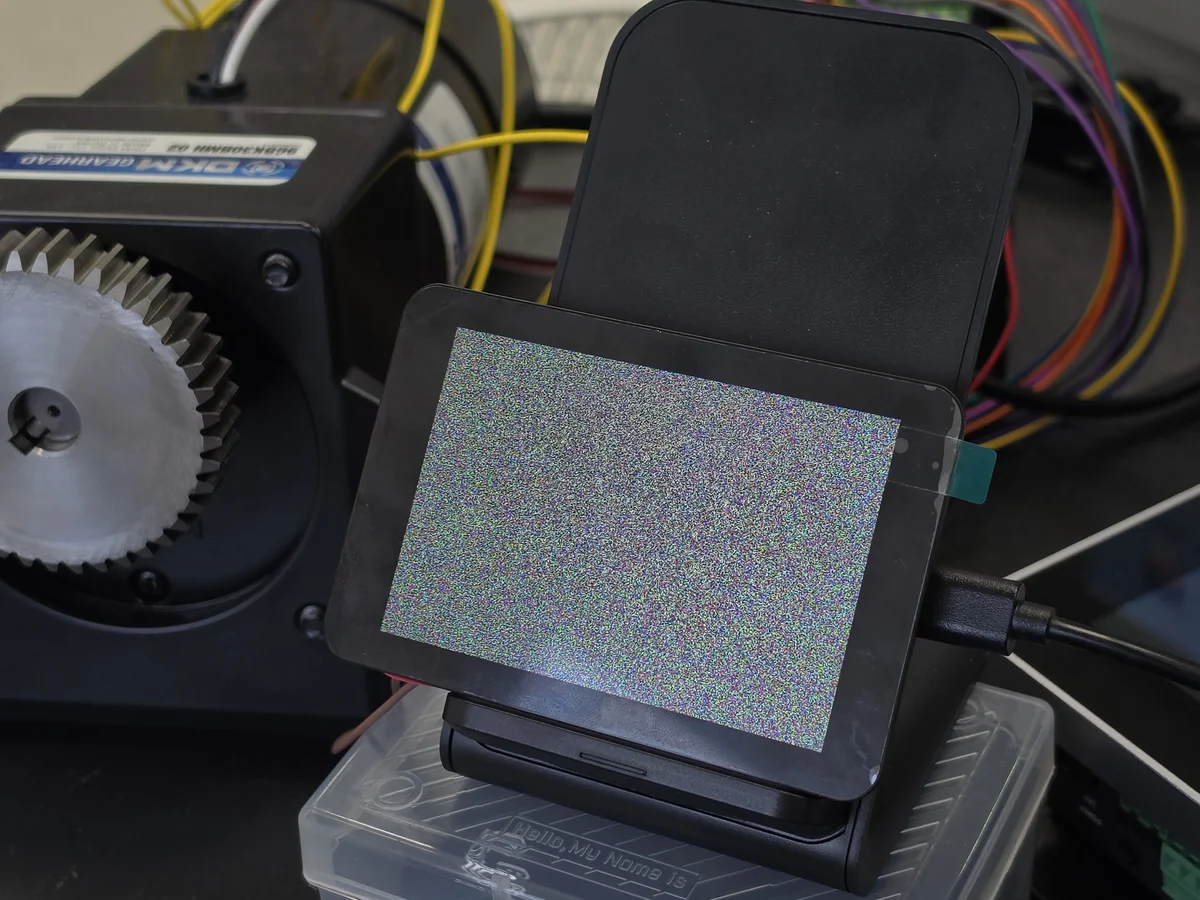
RP2350 Touch LCD 3.5 showing only noise on screen instead of booting normally
An RP2350 boot reset takes two actions
First stop the equipment and unplug the USB-C cable from the RP2350 board. If external power or a drive unit is connected, cut the power safely before you start.
1. Press the BOOT button
Find the small button labeled BOOT on the back of the board. Press the BOOT button, not RESET or PWR.
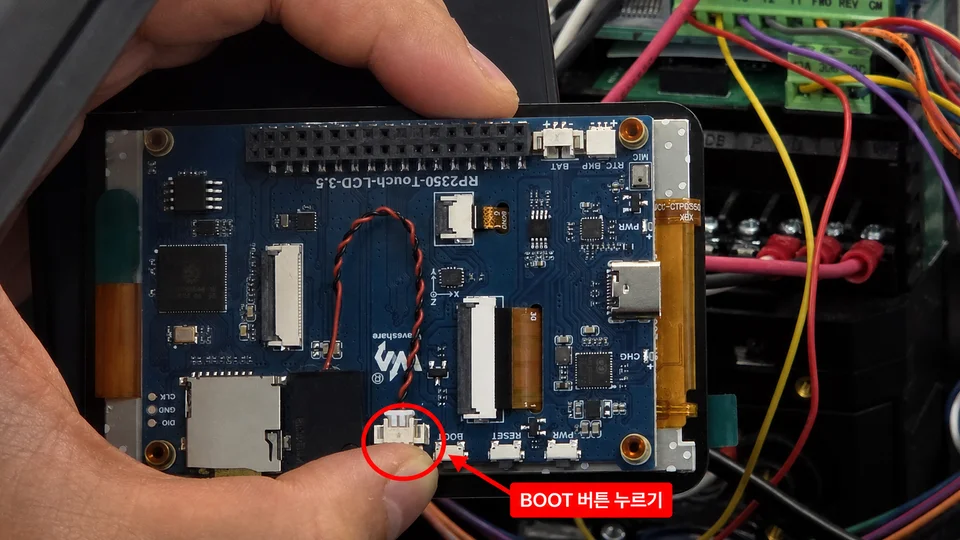
Location of the BOOT button on the back of the RP2350 Touch LCD 3.5
2. Connect the USB-C cable while holding BOOT
Keep the BOOT button held down and connect the USB-C cable. Once the PC recognizes the board as a removable drive, you can release the button.
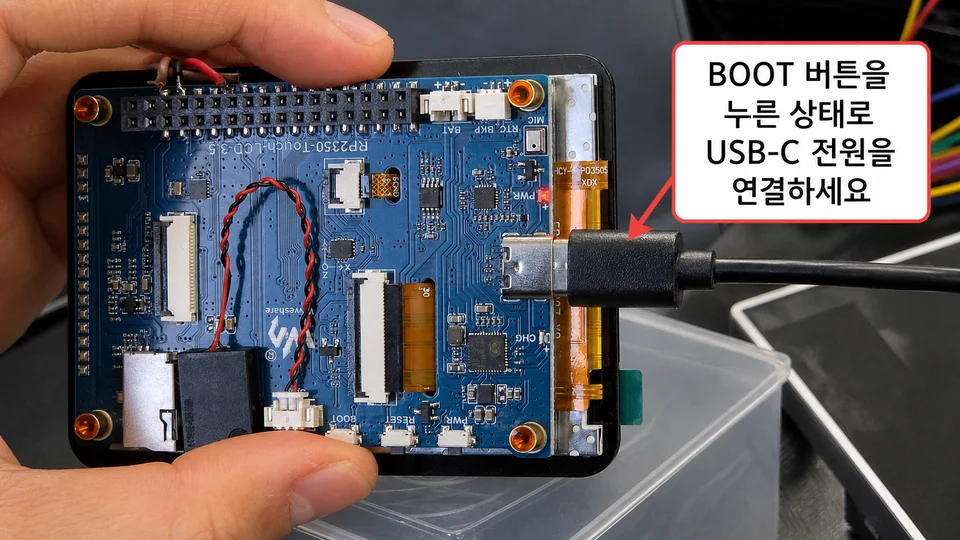
Connecting the USB-C cable while holding the BOOT button
The full sequence:
- Unplug the USB-C cable.
- Press the BOOT button.
- Connect the USB-C cable while holding the button.
- Check that an RP2350 removable drive appears on the PC.
Why does holding BOOT let you reconnect?
When power is applied or the chip is reset, the RP2350 decides how to start. Normally it runs the program stored in flash memory, but when the BOOT button is held it starts in USB download mode instead of the stored program.
This means new firmware can be uploaded over USB even when the current firmware does not run properly. Waveshare’s official documentation for the RP2350 Touch LCD 3.5 also describes BOOT as the button to hold during reset to enter download mode.
BOOT and RESET do different things
| Button | Role | When to use |
|---|---|---|
| BOOT | Enter USB download mode | When the stored program does not run or the upload connection fails |
| RESET | Restart the stored program from the beginning | When you simply want to restart the program |
| PWR | Turn the board power on or off | When controlling the equipment power |
For a simple glitch, RESET alone may be enough. But if the same symptom repeats after RESET, or the upload port cannot be found, enter download mode with BOOT and upload the firmware again.
What to do once in download mode
When the RP2350 removable drive shows up on the PC, copy the prepared UF2 firmware to it, or upload the program again from your Arduino or C/C++ development environment. After a successful firmware upload the board restarts and runs the stored program.
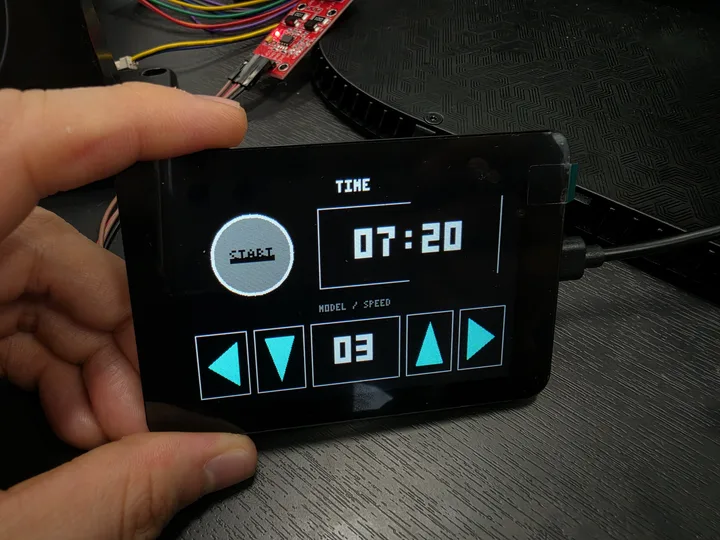
RP2350 Touch LCD 3.5 back to its normal screen after re-uploading the firmware
Contact
- Email: [email protected]
- Instagram: https://www.instagram.com/going.sen/
- Website: https://intosen.com/kr/consult/
Comments
Enter a nickname to leave a comment, or sign in with Google or GitHub.