
Install a handful of Raspberry Pi based devices and the same questions always follow.
“What was the IP of the one we just powered on?” “Is this the one for the first-floor conveyor?” “Which of these two has the new firmware?”
They work as soon as you plug them in, but somebody still has to remember what is running where. Going Connect is the Windows desktop app we built to delete that one remaining chore. Run it and every Going device on the same LAN appears in one window, sorted by brand and product family. A left click opens the web UI, and when you cannot tell which physical box you are looking at, the 🔔 button sounds its buzzer so you can identify it by ear.
This post covers the standard we settled on, how we implemented it, and a few traps we hit along the way.
The mDNS device discovery architecture at a glance
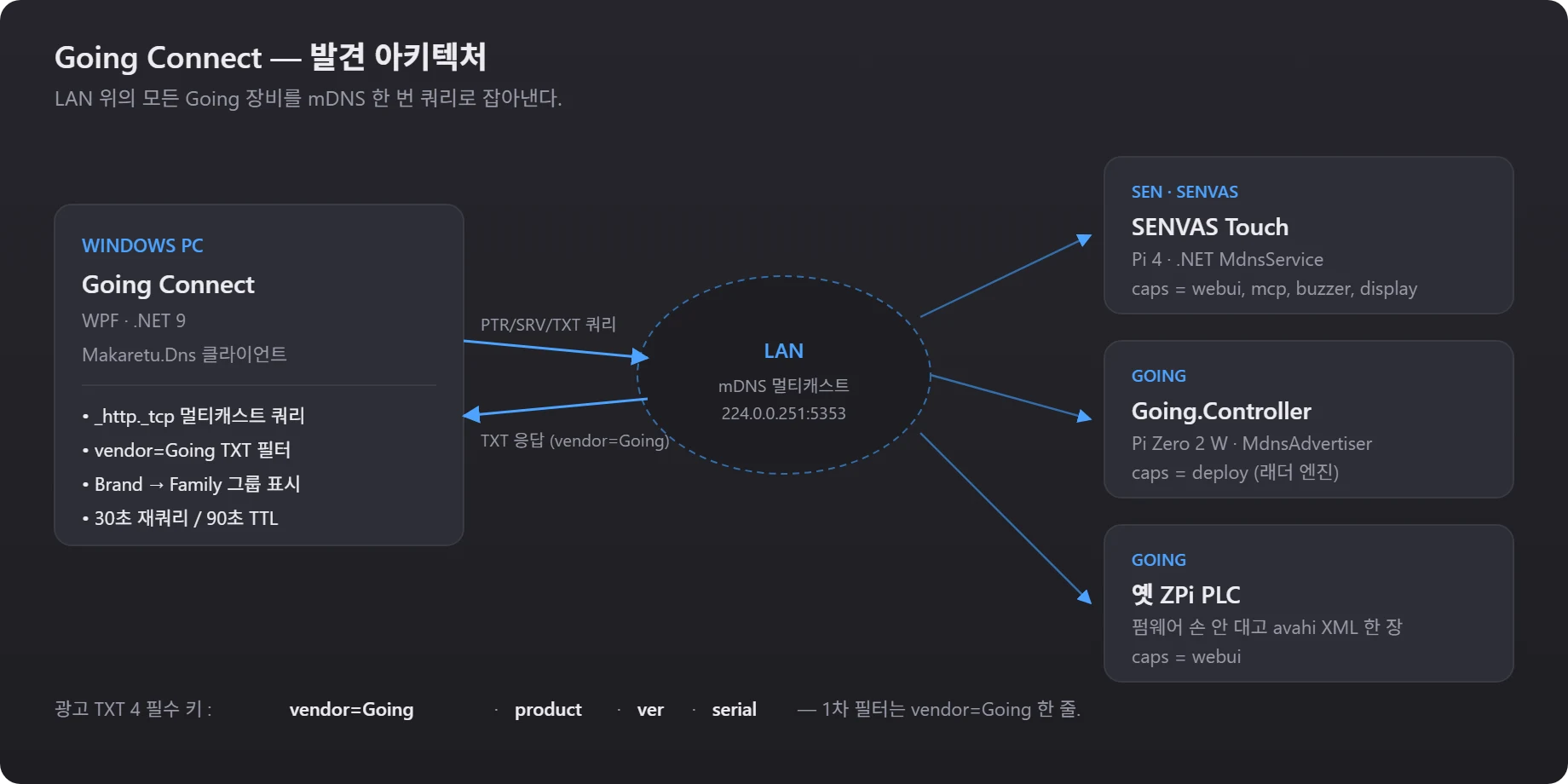 The PC only sends mDNS queries. Each device advertises its own identity through standard TXT records.
mDNS device discovery is the key piece. mDNS is mostly known for .local domains and automatic printer discovery, but it is a standard for advertising arbitrary services (_<type>._tcp / _<type>._udp), and on a Raspberry Pi avahi-daemon is running anyway and already advertising the hostname. All we had to do was add one set of our own TXT records on top.
Writing the mDNS advertisement standard — PROTOCOL.md
The mDNS TXT record contract comes first. To gather several products into one tidy window, you need a specification the company agrees on. So the very first thing we wrote was PROTOCOL.md — the mDNS advertisement contract every product under Going has to follow.
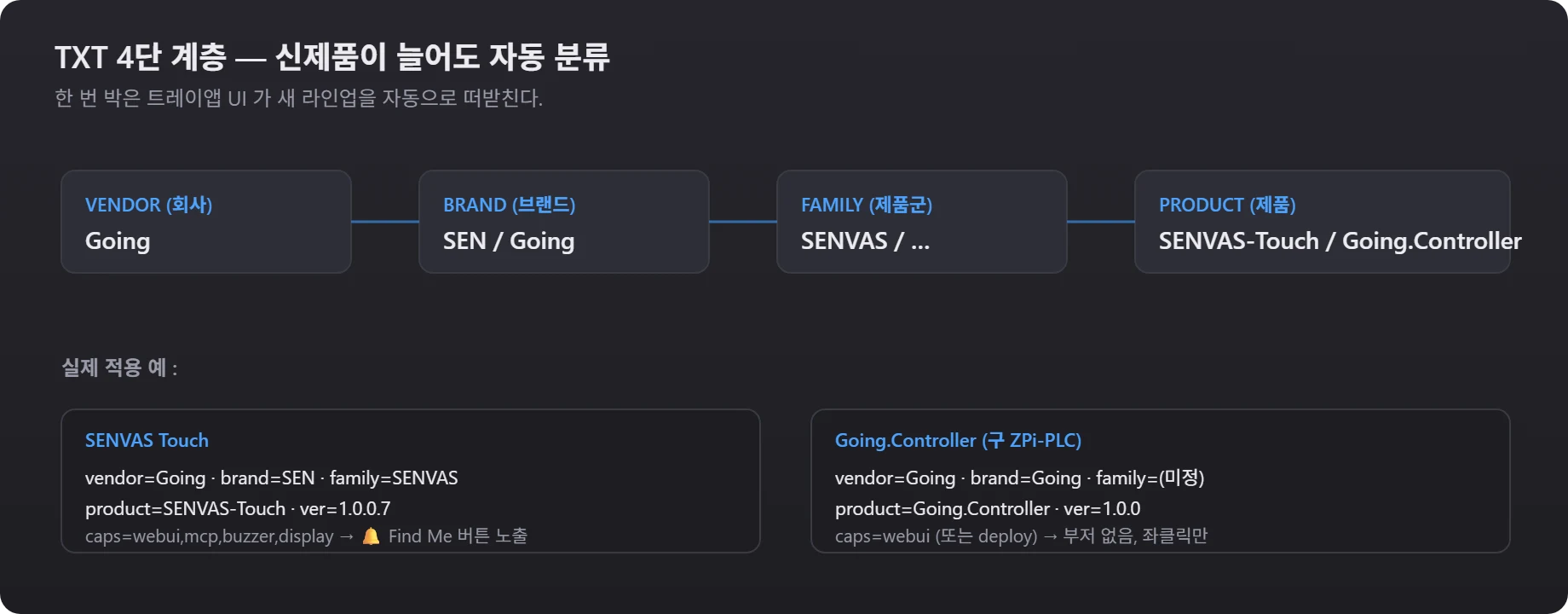 The SEN brand under the Going company, the SENVAS family under SEN, and the Touch product under SENVAS. New product lines get classified automatically.
The core rule is four mandatory TXT keys.
| Key | Meaning | Example |
|---|---|---|
vendor | Company — the key Going Connect uses as its first filter | Going |
product | Product name | SENVAS-Touch |
ver | Firmware version | 1.0.0.7 |
serial | Unique ID (last 6 of the MAC) | A3B1C2 |
Add optional keys such as brand / family / model / dev / label / caps and the app groups devices by brand and family on its own. The rule to follow when writing firmware for a new product is exactly one line.
A Going product only has to advertise a
vendor=GoingTXT record on_http._tcp.localto be picked up by Going Connect automatically.
Nailing that one line down in a specification meant the three products we handled afterwards advertise with nearly identical code, and the app’s UI can carry a new product without being touched.
Three ways to implement mDNS advertisement
mDNS advertisement follows the same standard everywhere, but where it gets implemented split into three cases depending on the product.
1. The firmware advertises directly — SENVAS Touch / Going.Controller
If the firmware is .NET 9 on Linux ARM64, it advertises directly through the Makaretu.Dns.Multicast.New library. A single 30-to-40-line MdnsService is all it takes.
var profile = new ServiceProfile($"{hostname}-web", "_http._tcp", 5000, addresses);
profile.AddProperty("vendor",  "Going");
profile.AddProperty("brand",   "SEN");
profile.AddProperty("family",  "SENVAS");
profile.AddProperty("product", "SENVAS-Touch");
profile.AddProperty("ver",     GetFirmwareVersion());
profile.AddProperty("serial",  GetSerial());     // last 6 of the MAC
profile.AddProperty("caps",    "webui,mcp,buzzer,display");

_multicast.Start();              // multicast has to be started first
_serviceDiscovery.Advertise(profile);
_serviceDiscovery.Announce(profile);
The order of those last three lines is a surprisingly nasty trap, which we come back to below.
2. When the firmware is off limits — one avahi service file
Sometimes rebuilding the firmware is not worth it, as with the old ZPi PLC units already in service. Fortunately the Raspberry Pi’s avahi-daemon reads and advertises any /etc/avahi/services/*.service XML automatically, so we can work around it at the OS level.
<?xml version="1.0" standalone='no'?>
<!DOCTYPE service-group SYSTEM "avahi-service.dtd">
<service-group>
  <name replace-wildcards="yes">%h-web</name>
  <service>
    <type>_http._tcp</type>
    <port>5000</port>
    <txt-record>vendor=Going</txt-record>
    <txt-record>brand=Going</txt-record>
    <txt-record>product=Going.Controller</txt-record>
    <txt-record>ver=1.0.0</txt-record>
    <txt-record>caps=webui</txt-record>
    <txt-record>role=webui</txt-record>
    <txt-record>path=/</txt-record>
  </service>
</service-group>
Drop that one file in place, run sudo systemctl restart avahi-daemon, and advertising starts with zero firmware builds.
Convenience — even an old unit on site whose firmware you cannot touch shows up in Going Connect within five minutes, as long as it is a Raspberry Pi.
3. Embedded boards with no Wi-Fi or OS — UDP broadcast (planned)
On an embedded board like Arduino-Pico plus W5500, an mDNS responder can be impractical because of its dependencies. For those we are keeping a lighter path open: a UDP broadcast announce. The Pico sends one short UDP packet onto the LAN every 5 seconds, and Going Connect receives it separately and merges those devices into the same window as the mDNS ones. (Not implemented yet — more in a later post.)
Going Connect — the Windows desktop app
The discovery side is a Windows desktop app — a single-instance window on .NET 9 + WPF. It started as a tray-resident app, but the actual usage pattern turned out to be “let me see what is up right now”, often, so we reworked it into an ordinary window.
flowchart LR
    A["User: refresh"] --> B["mDNS QueryServiceInstances · _http._tcp"]
    B --> C{"vendor=Going TXT present?"}
    C -- no --> X[Ignore]
    C -- yes --> D["Merge into one Device by serial"]
    D --> E["Two-level grouping: Brand → Family"]
    E --> F["Render the window list"]
The core UI behavior:
- Left click → open the web UI in the default browser (only when
webuiis in caps) - Right click → copy IP / 🔔 Find Me / install MCP
- 🔔 Find Me →
POST /api/find-mesounds the buzzer for about 2.5 seconds (only whenbuzzeris in caps) - Automatic re-query every 30 seconds; anything silent for 90 seconds drops off the list
Convenience — zero IP addresses to memorize, zero hostnames to type. Plug in a new device and it appears within 30 seconds.
Three mDNS and WPF traps we hit
① The Start() → Announce() ordering
The one that took longest to find. ServiceDiscovery.Announce() in Makaretu.Dns tries to send its first advertisement packet over multicast, and if MulticastService has not been Start()ed at that point the NIC’s MTU reads as 0, ArgumentOutOfRangeException("Exceeds max packet size of 0") is thrown, and the process dies with code=killed, signal=ABRT.
Then systemd restarts it under Restart=on-failure, it dies at the same spot again, and around it goes. In the end it was a one-line ordering problem.
// ✗ Wrong — Start comes last, so Announce cannot send a packet
_sd.Advertise(profile);
_sd.Announce(profile);
_mdns.Start();

// ✓ Right — start multicast first so the NIC and MTU are resolved
_mdns.Start();
_sd.Advertise(profile);
_sd.Announce(profile);
② A WPF ContextMenu whose RelativeSource cannot find the Window
We attached a right-click menu to the device list items in XAML, and clicking “open web UI” or “copy IP” did nothing at all. The Output window showed the same error six times:
System.Windows.Data Error: 4 : Cannot find source for binding with reference
'RelativeSource FindAncestor, AncestorType='System.Windows.Window'...
A ContextMenu lives in its own popup visual tree, separate from the main window, so walking up with AncestorType=Window never reaches the main window’s DataContext. The standard workaround is to stash the ViewModel in the Border’s Tag in advance and have the menu reach it through PlacementTarget.Tag.XxxCommand:
<Border Tag="{Binding DataContext, RelativeSource={RelativeSource AncestorType=Window}}">
  <Border.ContextMenu>
    <ContextMenu>
      <MenuItem Header="웹 UI 열기"
                Command="{Binding PlacementTarget.Tag.OpenWebCommand,
                          RelativeSource={RelativeSource AncestorType=ContextMenu}}"
                CommandParameter="{Binding PlacementTarget.DataContext,
                          RelativeSource={RelativeSource AncestorType=ContextMenu}}"/>
③ The bell that vanished on every refresh
SENVAS Touch advertises two services, webui and mcp, and each one carries different caps.
| Instance | caps |
|---|---|
senvas-01-web._http._tcp | webui, buzzer, display |
senvas-01-mcp._http._tcp | mcp |
The app merges both instances into a single device, but the initial code overwrote caps with the last response. If the mcp response arrived after the webui one, caps became [mcp] and the 🔔 button disappeared. Refresh a few times and the bell blinked in and out depending on response order.
The fix is one line — accumulate the union:
var incoming = txt["caps"].Split(',', ...);
device.Caps = device.Caps.Concat(incoming)
    .Distinct(StringComparer.OrdinalIgnoreCase)
    .ToArray();
A cap that has been seen once stays. A device that goes unseen for 90 seconds disappears entirely and starts fresh when it comes back, so in practice this behaves correctly.
Where Going Connect stands and what comes next
As of today, Going Connect device discovery picks up these products automatically.
─ SEN ▾
   └ SENVAS
      🖥 SENVAS Touch · #01 · senvas-01.local · 192.168.0.x · v1.0.0.7 🔔
─ Going ▾
   └ (Family unset)
      🖥 Going.Controller · going-zpi.local      · 192.168.0.x · v1.0.0.0
      🖥 Going.Controller · going-zpi-XXX.local  · 192.168.0.x · v1.0.0
The 🔔 button only appears on SENVAS Touch, the model with a buzzer; the old PLC and the Controller simply open their web UI on a left click. Work starts in one window, with no IP addresses to remember.
Next steps
- PICO + W5500 UDP announce — auto-discovery for the embedded line where mDNS is impractical
- Find Me screen overlay — not just the buzzer, but a full-screen “FIND ME · senvas-01” shown for 5 seconds on the SENVAS Touch display
- Downloadable install .bat — “register the MCP server for this SENVAS Touch” from the right-click menu in one step
Details like the MSBuild task that extracts the version from the CHANGELOG filename, and migrating our other products to the PROTOCOL.md standard, are for a later post.
In short — four mandatory TXT keys agreed on company-wide, plus half an hour of firmware work (or a single XML file). After that, a new product appears on screen the moment it is plugged into the LAN.
The core of mDNS device discovery is nailing four mandatory TXT keys down as a company standard, so a new product joins the same screen without any code change.
Contact
- Email: [email protected]
- Instagram: https://www.instagram.com/going.sen/
- Website: https://intosen.com/kr/consult/
Comments
Enter a nickname to leave a comment, or sign in with Google or GitHub.