
This ladder switches a fan using the weather from the internet. It takes four rungs and one C# method. C# fetches Seoul’s temperature from a weather API and writes it to D0, and the ladder compares that value and decides.
What you need
| Item | Details |
|---|---|
| Project | A PLC-track project (ladder + C#) |
| Runtime connection | Connected to a runtime through the connection icon at the bottom. The screens in this post come from a runtime running on a PC |
| Internet | The device running the runtime must be able to reach outside addresses |
| Output address | An output for the fan relay. This example uses OUT1 on the ZPi-IO8R main board, which is P5 |
How it fits together
- C# calls the weather API every 60 seconds and writes the temperature to
D0.R. - The ladder turns on
TooHotat 28℃ or above andCooledat 26℃ or below, then uses those two bits to switch the fan.
C# fetches values from the outside world, and the ladder decides what to do with them. The two share one memory cell, D0.
1. Symbols
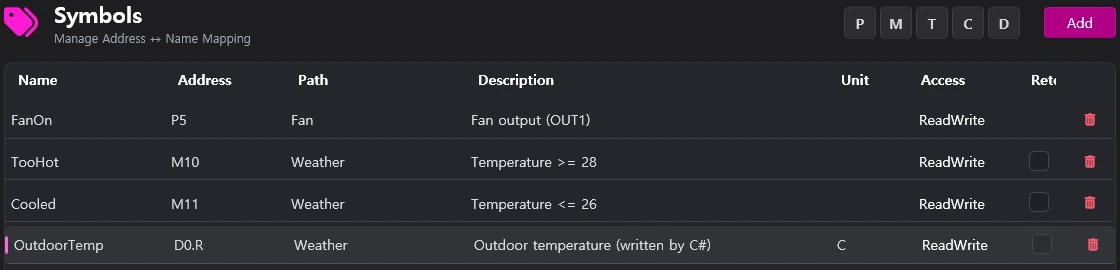
| Name | Address | Description |
|---|---|---|
OutdoorTemp | D0.R | Outdoor temperature in ℃, written by C# |
TooHot | M10 | Temperature ≥ 28 |
Cooled | M11 | Temperature ≤ 26 |
FanOn | P5 | Fan output |
The temperature has a decimal part, so the address ends in .R. .R is a float and takes two words (D0 and D1). The ladder and C# both read and write values like 19.9 under the same name, OutdoorTemp.
2. Ladder
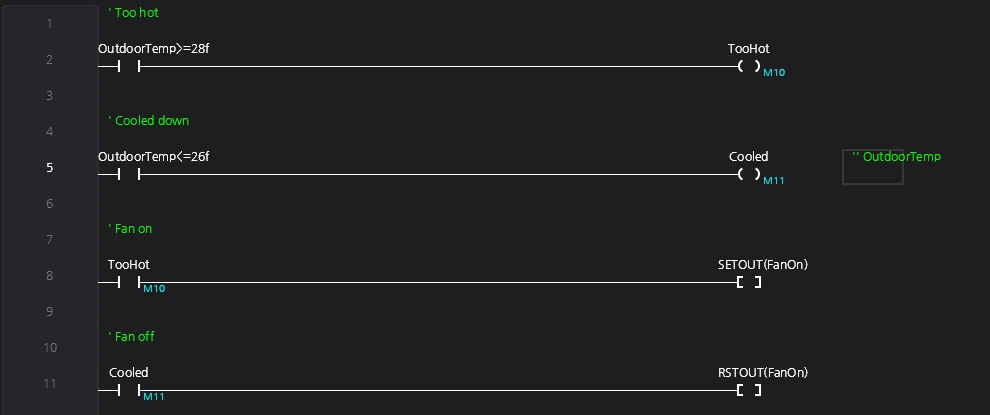
| Rung | Contact | Output |
|---|---|---|
| Too hot | OutdoorTemp>=28f | TooHot coil |
| Cooled down | OutdoorTemp<=26f | Cooled coil |
| Fan on | TooHot | SETOUT(FanOn) |
| Fan off | Cooled | RSTOUT(FanOn) |
The first two rungs put a comparison straight into the contact slot. When the condition holds, the contact conducts and the coil turns on. When you build, this contact becomes a C# expression like (Scan.D[0].R>=28f).
The lower two rungs are a latch. SETOUT holds an output on once it is set, and RSTOUT clears it. The turn-on threshold (28℃) and the turn-off threshold (26℃) are different, so between 26 and 28℃ neither fires and the fan keeps its previous state. It won’t flicker on and off near a single threshold.
Right after startup OutdoorTemp is 0, so Cooled comes on first and the fan starts off.
3. C#
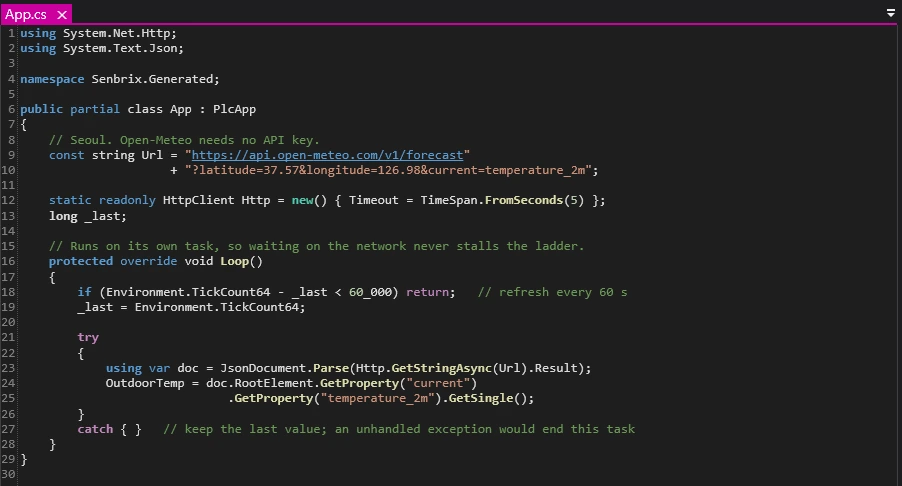
using System.Net.Http;
using System.Text.Json;
namespace Senbrix.Generated;
public partial class App : PlcApp
{
// Seoul. Open-Meteo needs no API key.
const string Url = "https://api.open-meteo.com/v1/forecast"
+ "?latitude=37.57&longitude=126.98¤t=temperature_2m";
static readonly HttpClient Http = new() { Timeout = TimeSpan.FromSeconds(5) };
long _last;
// Runs on its own task, so waiting on the network never stalls the ladder.
protected override void Loop()
{
if (Environment.TickCount64 - _last < 60_000) return; // refresh every 60 s
_last = Environment.TickCount64;
try
{
using var doc = JsonDocument.Parse(Http.GetStringAsync(Url).Result);
OutdoorTemp = doc.RootElement.GetProperty("current")
.GetProperty("temperature_2m").GetSingle();
}
catch { } // keep the last value; an unhandled exception would end this task
}
}A few notes on the code.
Setup()andLoop()run on their own task, separate from the ladder cycle, so waiting for a network response doesn’t delay the 10 ms ladder cycle.- The runtime calls
Loop()repeatedly. Left alone, it would hit the API nonstop, so it checksEnvironment.TickCount64for 60 seconds and returns right away otherwise. - If the connection drops or nothing comes back within 5 seconds, an exception is thrown. Swallowing it with
try/catchleavesOutdoorTempat its previous value. - An exception that leaves
Loop()quietly ends this whole task. The temperature stops updating while the ladder keeps running, which makes the problem hard to notice.
4. Build, deploy and monitor
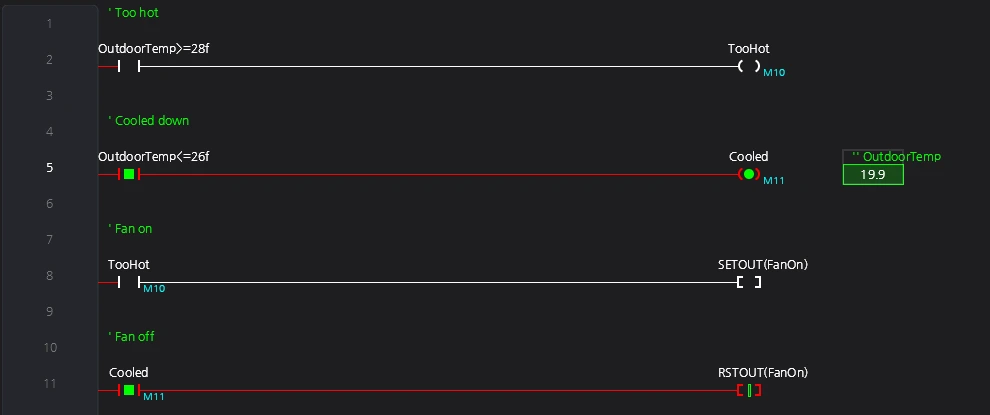
Press Build, then Deploy, then Monitor. When the status bar shows that the deploy finished and the runtime is running, the monitor overlay appears on the ladder.
Place an '' OutdoorTemp watch cell next to the ladder and you can read the value directly. On 2026-10-02 Seoul’s temperature started at 19.8℃ and changed to 19.9℃ a few minutes later. Even though we ask every 60 seconds, the API refreshes its value every 15 minutes, so the temperature doesn’t change on every call.
On screen you should see:
- The
OutdoorTemp<=26fcontact conducts and theCooledcoil is on. RSTOUT(FanOn)on the Fan off rung conducts, so the fan is off.- The
TooHotrung is off, as expected at a temperature well below 28℃.
To see the fan turn on, the temperature has to pass 28℃. To see it at the current temperature, lower both the turn-on and turn-off values below it (for example 18 and 16). TooHot then comes on, Cooled stays off, and SETOUT(FanOn) conducts. If you change only the turn-on value, the Fan off rung sits lower and wins, so the fan stays off. Change both.
Going further
- To change the location, edit only
latitudeandlongitudeinUrl. - To use other values, write humidity or wind speed into a
Dregister the same way and change only the comparisons in the ladder. The structure stays the same:Loop()fetches the value and the ladder decides.
Comments
Enter a nickname to leave a comment, or sign in with Google or GitHub.